Access tokens and n8n
An access token lets an automation tool such as n8n use the Voice AI Portal MCP server without signing in like an AI app. The agency owner creates it, chooses exactly what it may do and which clients it can reach, and sets when it expires. The tool then sends it as a Bearer token with every request.
Use a token when a tool can’t do the browser sign-in that Claude does: n8n and other automation tools, scripts, or Claude Code running unattended. For Claude.ai, Claude Desktop and Claude Code at your desk, connect with sign-in instead.
Create a token
Section titled “Create a token”Only the agency owner can create tokens, and the dashboard session must be signed in with an email code.
-
Open Settings, then Connected apps, and find Access tokens.
-
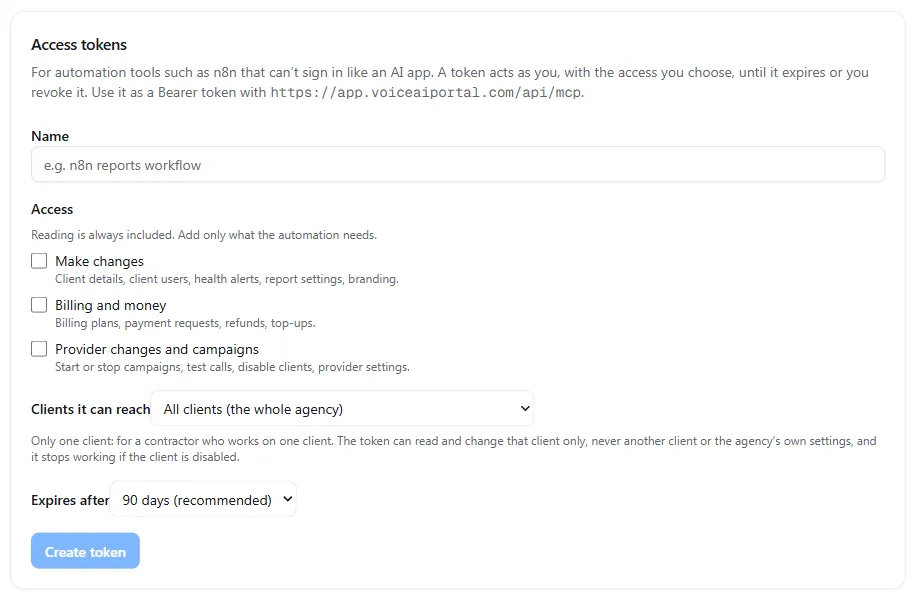
Name it after what will use it, for example
n8n weekly report. -
Choose its access. Reading is always included. Tick only what the automation needs:
- Make changes: client details, client users, health alerts, report settings, branding.
- Billing and money: billing plans, payment requests, refunds, top-ups.
- Provider changes and campaigns: start or stop campaigns, test calls, disable clients, provider settings.
-
Choose the clients it can reach: All clients (the whole agency), or one client only. A one-client token can read and change that client only, never another client or the agency’s own settings, and it stops working if that client is disabled.
-
Choose when it expires: 7, 30, 90 (recommended), 180 or 365 days. Tokens never last for ever.
-
Select Create token, then Copy. The token is shown once. Keep it in your automation tool’s credentials, then select Done.

Use it
Section titled “Use it”Every token works with the same address. Send it in the Authorization header:
Server URL: https://app.voiceaiportal.com/api/mcpHeader: Authorization: Bearer vappat_your_tokenThe server speaks MCP over HTTP (Streamable HTTP) and answers each request with JSON. An automation tool that can call an MCP server with a Bearer token can use it.
n8n’s MCP Client Tool node lets an n8n AI Agent call an MCP server’s tools. n8n’s documentation says the node supports Bearer authentication and lets you choose which of the server’s tools the agent may use: all, selected, or all except some. Use the server URL above, a Bearer credential holding your token, and pick only the tools your workflow needs.
Claude Code without a browser
Section titled “Claude Code without a browser”claude mcp add --transport http voice-ai-portal https://app.voiceaiportal.com/api/mcp \ --header "Authorization: Bearer vappat_your_token"What a token can and can’t do
Section titled “What a token can and can’t do”- It acts as you, the owner who created it, with only the access you ticked. Reading is always included.
- A one-client token sees only that client’s tools and data. For example, a read-only token for one client gets 22 reading tools; agency-wide tools, such as the agency briefing, aren’t offered. Asking about another client answers “not found”. It never shows another client’s name: where something is shared with other clients, it says how many.
- Every change still runs as a preview first, and money and client-facing changes still need the exact confirmation text, exactly as with Claude. An automation that wants to apply a change has to send the preview’s token and the confirmation back.
- Provider API keys never pass through it. For a key, it gets the same secure dashboard link that Claude gets.
Limits
Section titled “Limits”| Limit | Value |
|---|---|
| Live tokens per agency | 10 |
| Tool calls, whole agency (every assistant and token together) | 600 an hour |
| Changes, whole agency | 120 an hour |
| Emails sent through AI assistants and tokens, whole agency | 50 a day |
| Tool calls by one one-client token | 200 an hour |
| Changes by one one-client token | 40 an hour |
A busy automation shares the agency’s hourly budget with your own Claude, so give each workflow only what it needs.
Expiry, replacement and revoking
Section titled “Expiry, replacement and revoking”- Reminder: the owner gets an email 7 days before a token expires. Tokens that last 7 days get no reminder.
- Replace a token before it expires: create a new one with the same access, put it in your tool, then revoke the old one. There’s no “renew” button.
- Revoke in Settings, Connected apps: select Revoke next to the token. Anything using it stops straight away, and this can’t be undone.
- When the owner leaves, the tokens they created stop working.
See what a token did
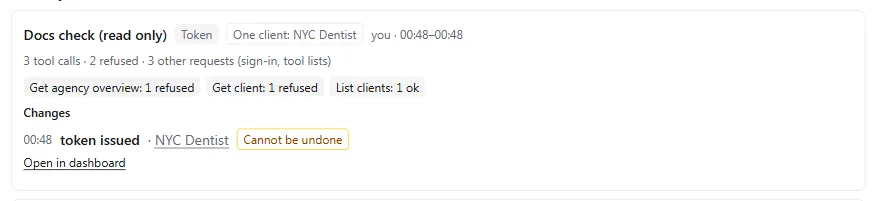
Section titled “See what a token did”The Activity tab in Connected apps shows each token’s sessions: the tools it used, the clients it touched, what was refused and any changes it made. It never shows the content of what was asked or returned. Activity and audit.