
An outbound calling template defines the data structure for your client’s lead list and controls what information gets passed to the AI agent on every call. Think of it as the bridge between your client’s contact data and the AI agent’s conversation — every column in the lead CSV maps to a variable the agent can use to personalise each call.
Templates are created at the agency level and reused across multiple workspaces and bundles. Create one template per use case and assign it to as many workspaces as needed.
Time to complete: ~5 minutes
Who this is for: Agency admins creating outbound campaign templates
Category: Campaigns
Before You Begin
- You must be logged in to the Agency Admin Portal
- Have your Voice AI agent open in your provider dashboard (Retell, VAPI, or ElevenLabs) — you will need to cross-reference the variables you define here with your agent’s prompt
- Know the use case for this template — appointment reminders, lead qualification, payment collections, etc.
How Templates Work
When a client launches an outbound campaign, Voice AI Portal:
- Reads each row of the client’s uploaded lead list CSV
- Maps each column to its corresponding template variable
- Injects those values into the AI agent’s prompt before each call is made
- The agent dials the contact’s
phonenumber with their personalised data already loaded
The template defines which columns the CSV must contain and which variables the agent will receive. If a variable exists in the template but not in the agent’s prompt — or vice versa — the data will not be used correctly during the call.
Opening the Template Wizard
- In the left sidebar, click Outbound Calling Templates.
- You will see a list of all existing templates showing name, use case, variable count, and creation date.
- Click + New Template in the top right corner.
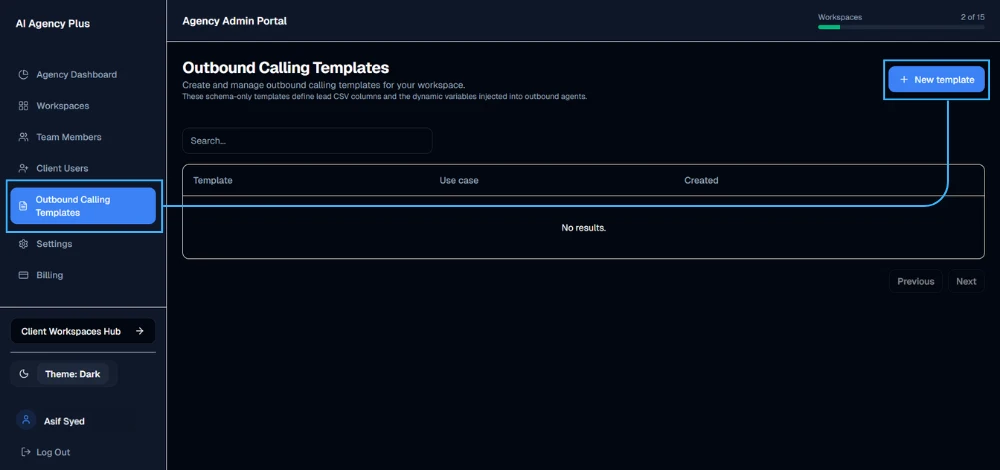
The New Outbound Voice AI Template wizard opens — 3 steps:
Template basics → Required variables → Review
Step 1 of 3 — Template Basics
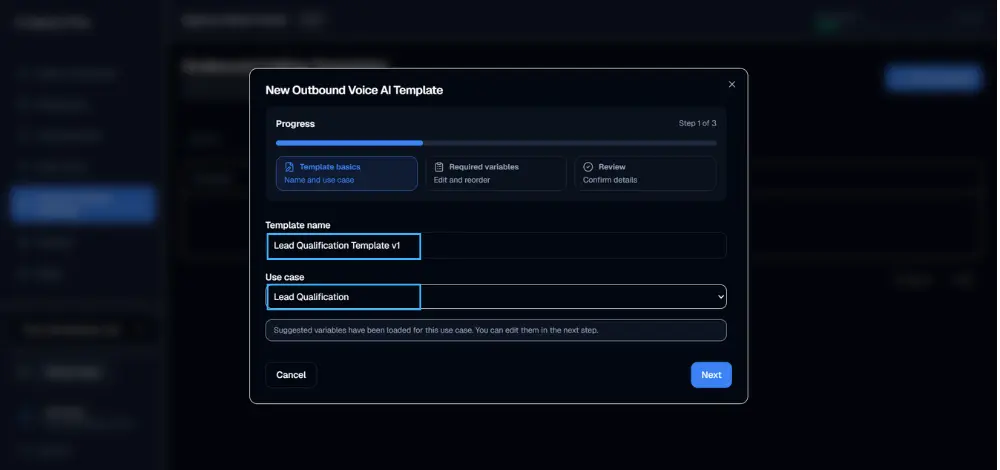
Template Name
Enter a clear, descriptive name. This is visible to you when assigning templates to workspace bundles — be specific enough to identify it instantly when managing multiple templates.
💡 Good naming examples:
Appointment Reminder V1Lead Qualification – Real EstatePayment Collections – StandardWin-Back – Retail Q1 2026
Select Use Case
Select the use case that best matches the purpose of this template. Selecting a use case pre-populates a recommended set of variables in Step 2, saving setup time.
Available use cases:
| Use Case | Best For |
|---|---|
| Win-Back | Re-engaging lapsed or churned customers |
| Feedback Surveys | Post-service or post-purchase feedback calls |
| Sales Follow-Ups | Following up on inbound leads or sent quotes |
| Lead Qualification | Screening and qualifying new inbound leads |
| Order Confirmation | Confirming order details with customers |
| Payment Collections | Chasing overdue or outstanding payments |
| Appointment Reminders | Reminding patients or clients of upcoming bookings |
| Recruitment Screening | Initial screening calls for job applicants |
| Custom use case | Any use case not covered by the options above |
💡 Not sure which use case fits? Choose the closest match — you can fully customise the variables in Step 2 regardless of which use case you select. Use case selection is primarily for organisation and pre-populating a sensible starting set of variables.
Click Next to continue.
Step 2 of 3 — Required Variables
Variables define the columns your client must include in their lead list CSV. Each variable name corresponds directly to a {{variable_name}} placeholder in the AI agent’s prompt — when a call is made, the agent’s prompt is populated with that contact’s real data.
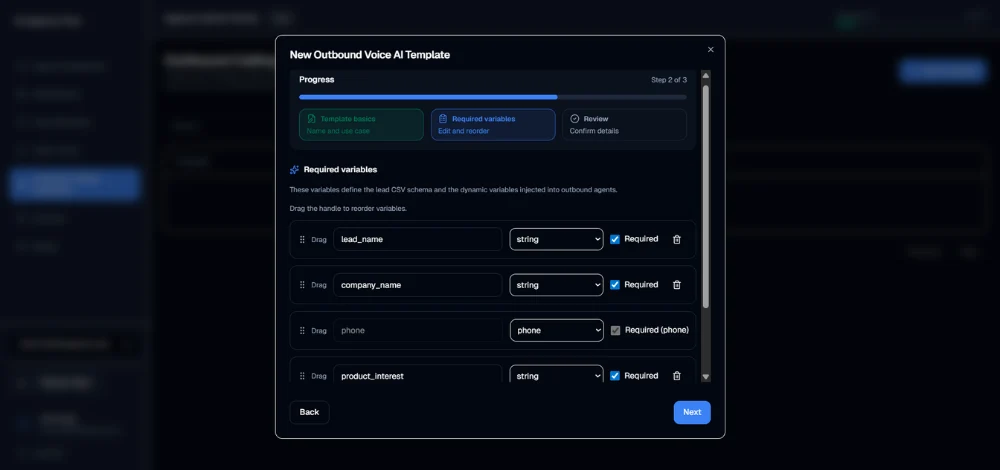
Based on your use case selection, a recommended set of variables is pre-loaded. You can edit, reorder, add, and delete any variable here.
Variable Properties
Each variable row has three properties:
| Property | Description |
|---|---|
| Variable name | The column header name in the client’s CSV — must match exactly what’s referenced in the agent’s prompt |
| Type | The data format: string (text), phone, date, number, boolean |
| Required | Whether this field is mandatory when the client uploads their lead list |
The Phone Variable
The phone variable is always present and permanently marked as Required (phone). This is the number the AI agent dials for each contact. It cannot be deleted or changed to a different type.
Managing Variables
Reorder
Drag the handle (⠿) on the left of any row to change the order. The order here determines the expected column order in the client’s CSV — keep it logical and intuitive for your client.
Add a variable
Click + Add variable at the bottom of the list. A new row appears — enter the variable name, select a type, and set required status.
Delete a variable
Click the trash icon (🗑) on the right of any row to remove it. Only remove variables that your agent prompt does not reference.
Mark as required
Check the Required checkbox on any row. Required fields must be present and populated in every lead list the client uploads — the platform will reject CSVs missing required fields.
⚠️ Variable names must exactly match your agent prompt. If your agent prompt uses
{{lead_name}}, the variable here must be namedlead_name— exact spelling, exact capitalisation, no spaces. Any mismatch means the agent receives no data for that field during the call.
💡 Mark critical variables as required. Any variable your agent actively uses to conduct the call — such as
lead_name,appointment_date, orservice_details— should be marked required. This prevents your client from uploading an incomplete lead list that would cause agent failures mid-call.
The {{campaign_notes}} Variable
Every outbound campaign includes a Campaign Notes field that clients fill in at launch time. This passes a custom instruction or message from the client to the agent for that specific campaign run — without you needing to reconfigure anything.
⚠️
{{campaign_notes}}must be included in your agent’s prompt. You do not need to add it as a template variable — it is passed automatically. However, if it is not referenced in the agent’s prompt, any notes your client enters will be ignored. Add this to your agent prompt:Additional campaign notes: {{campaign_notes}}
Click Next to continue.
Step 3 of 3 — Review
The Review screen shows a complete summary of your template before it is created:
- Name — the template name you entered
- Use case — the selected use case
- Variables — total count and a full list showing each variable name, type, and required status
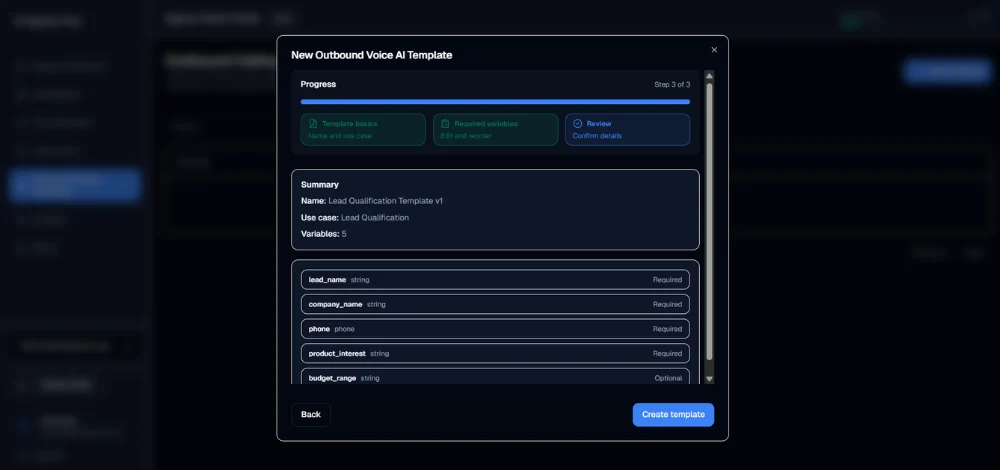
Final Checks
Before creating, confirm:
- All variable names match exactly what is referenced in your agent’s prompt using
{{variable_name}}syntax - The
phonevariable is present and marked as Required - All variables the agent depends on to conduct the call are marked as Required
- No unused variables are included — keep the schema clean for your client
{{campaign_notes}}is referenced in your agent’s prompt
If anything needs adjusting, click Back to return to the previous step.
Once satisfied, click Create Template.
The template is saved and immediately appears in your Outbound Calling Templates list — ready to assign to a workspace bundle.
After Creating a Template
Your template is now available to assign to any workspace bundle across your agency. The next step is enabling outbound calling on the workspace and creating a bundle that uses this template.
💡 Templates are reusable. A single
Appointment Reminder V1template can be assigned to every client workspace that runs appointment reminder campaigns — you don’t need to recreate it per client. If a use case evolves, create a new version (Appointment Reminder V2) and update the relevant bundles.
Editing or Deleting a Template
From the Outbound Calling Templates list:
- Click the edit icon (✏️) to update the template name, use case, or variables
- Click the delete icon (🗑) to permanently remove the template
⚠️ Deleting a template that is assigned to an active bundle will affect outbound calling for that workspace. Always check which bundles use a template before deleting it.
Troubleshooting
| Issue | Solution |
|---|---|
| Pre-populated variables don’t match my use case | Edit or delete them freely in Step 2 — pre-populated variables are suggestions only |
Can’t delete the phone variable | The phone variable is permanent and required — it cannot be removed |
| Template not appearing in bundle dropdown | Confirm the template was fully saved by checking it appears in the Outbound Calling Templates list |
| Agent not using variable data during calls | Variable name in template doesn’t match {{variable_name}} in agent prompt — check for exact name and case match |
| Client CSV upload rejected at campaign launch | A required variable is missing from the client’s CSV — share the required column names and order with your client |