
Your workspace is permanently connected to a single Voice AI provider – Retell AI, VAPI, or ElevenLabs. While the provider itself cannot be changed after creation, the API key that authenticates that connection can be updated at any time.
Time to complete: ~5 minutes
Who this is for: Agency admins rotating or replacing a workspace API key
Category: Workspaces
When Should You Rotate Your API Key?
- Routine security rotation — Best practice is to rotate API keys every 90 days
- Compromised or leaked key — Replace immediately if you suspect a key has been exposed
- Key revoked or expired — If the workspace shows a disconnected status, the key may have been deleted in the provider dashboard
- Team member offboarding — If a team member who had access to the key leaves, rotate as a precaution
💡 When updating a key here, make sure you paste the key that belongs to this specific workspace — not a key from a different workspace in the same provider account. Doing so will trigger an asset mismatch warning and cause existing agents and phone numbers to be lost.
How to Access API Key Settings
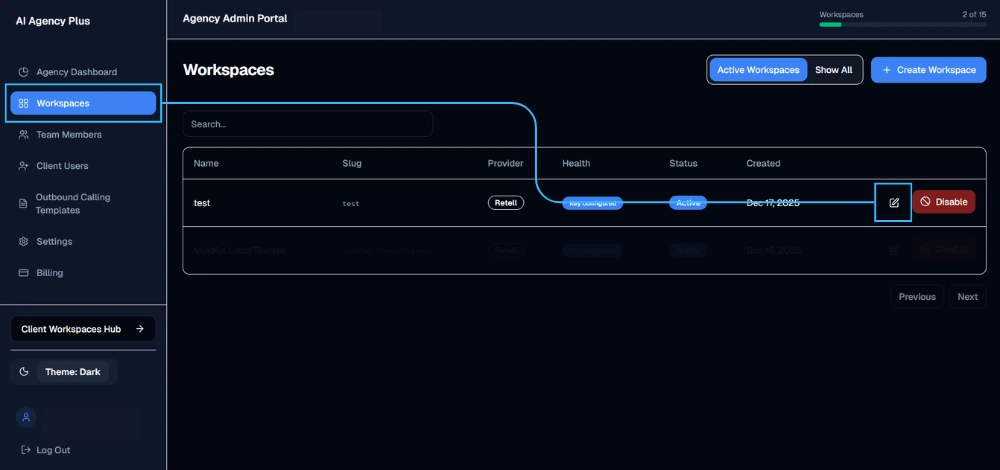
- In the left sidebar, click Workspaces.
- Find the workspace you want to update — confirm the Provider column shows the correct provider before proceeding.
- Click the edit icon (✏️) on the right side of that workspace row.
- The Edit Workspace wizard opens at Step 1 of 6: Connection.
The Connection screen shows:
- Provider badge — e.g.,
Retell AIwith aConnected ✅status - Last synced timestamp and current asset count
- Current API Key — masked (e.g.,
sk-************) - Change API Key button
Rotating the API Key
Step 1 — Generate a New Key in Your Provider Dashboard
Before making any changes in Voice AI Portal, create the replacement key in your provider dashboard. Do not delete the old key yet.
| Provider | Path | Important |
|---|---|---|
| Retell AI | Settings > API Keys > Create new API key | dashboard.retellai.com/settings/api-keys |
| VAPI | API Keys > Add Key | Must use a Private API key, not Public |
| ElevenLabs | Developers > API Keys > Create API Key | Must select Write access for ElevenLabs Agents |
Step 2 — Enter the New Key
On the Connection screen, click Change API Key.
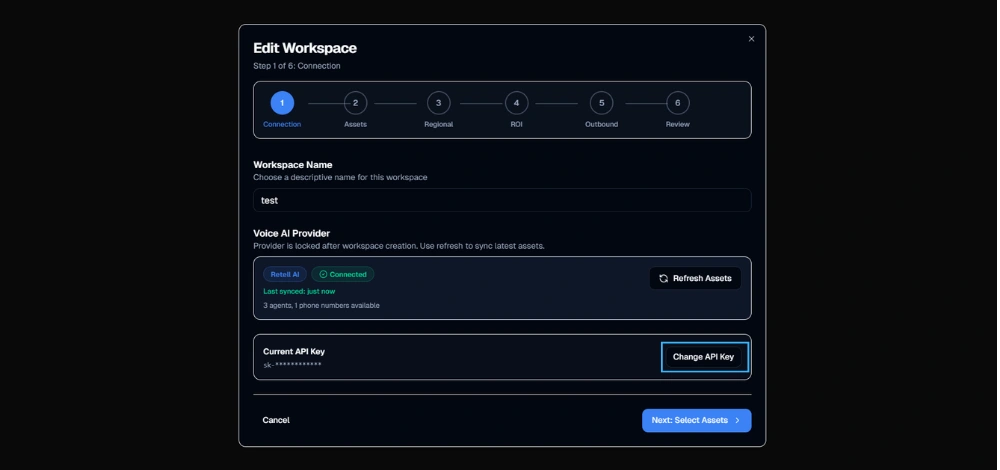
A New API Key input field appears below the masked current key.
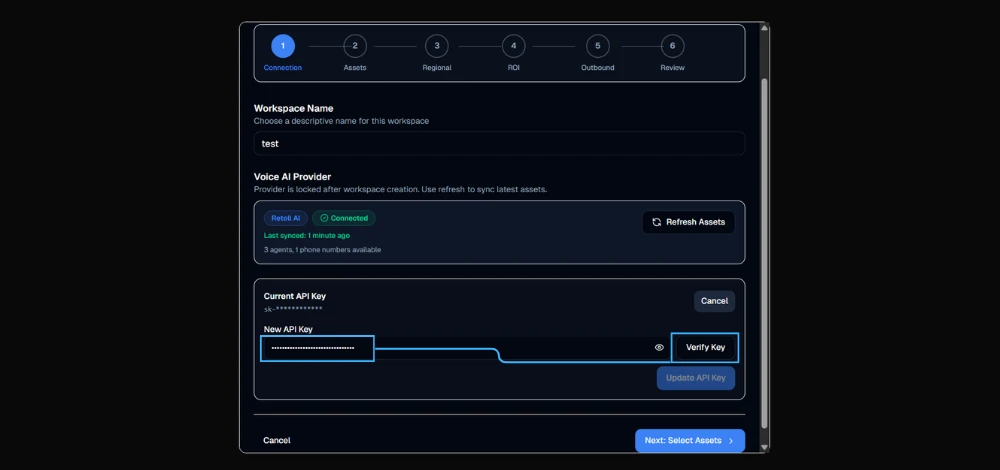
- Paste your new key into the New API Key field.
- Click the eye icon to verify it pasted correctly.
- Click Verify Key.
Step 3 — Review the Verification Result
Verification checks the new key against your provider account and compares what it finds to your existing workspace assets. Two outcomes are possible:
Clean Rotation — Same Account, Assets Match
The new key belongs to the same provider account. Existing agents and phone numbers are all present under the new key.
- No changes to assets
- No disruption to your client’s workspace
- Safe to proceed
Click Update API Key to apply the change.
Asset Mismatch Warning — Key Belongs to a Different Account
Voice AI Portal detects that the new key connects to a different workspace than the one originally used. The agents and phone numbers associated with the original account are not available under this new key.
A warning is displayed highlighting the assets that will be lost if you proceed.
🚨 Stop and check your key. This warning almost always means the wrong key was pasted — for example, a key from a different client’s Retell account, or a key from a test account instead of the production account. Click Cancel, verify you have the correct key from the correct provider account, and try again.
If you genuinely intend to connect this workspace to a different account (e.g., a client has migrated to a new workspace), understand that all currently assigned agents and phone numbers will be removed from this workspace. You will need to reassign assets from the new account in Step 2 of the wizard. Active outbound campaigns using the old assets will also be affected.
Step 4 — Apply and Continue
- Once verified and confirmed, click Update API Key.
- The Connection screen updates — provider status refreshes to
Connectedwith a new last synced timestamp. - Click Next: Select Assets →.
- For a clean rotation where no assets changed, click through Steps 2–6 without making changes and click Save on the Review screen.
- For a key that brought in different assets, review and reassign agents and phone numbers in Step 2 before saving.
Step 5 — Delete the Old Key in Your Provider Dashboard
Once the new key is confirmed working in Voice AI Portal:
- Return to your provider dashboard
- Locate the old key
- Delete it
⚠️ Always confirm the new key works before deleting the old one. Deleting the old key first will immediately disconnect your workspace until a new key is added.
What Your Client Experiences During a Key Rotation
For a clean rotation (same account, matching assets):
- Nothing changes for your client
- Their workspace dashboard, call history, and analytics remain identical
- No downtime or interruption
For a rotation that results in asset changes:
- Agents or phone numbers may disappear from their workspace until reassigned
- Any active outbound campaigns may be interrupted
- Notify your client before proceeding if this applies
Troubleshooting
| Issue | Solution |
|---|---|
| Verification fails immediately | Re-copy the full key — no extra spaces. VAPI: use Private key. ElevenLabs: use Write access key. |
| Asset mismatch warning on what should be a clean rotation | You may have copied a key from the wrong account — verify you’re in the correct provider dashboard and the correct account |
| Workspace shows disconnected after update | The old key may have been deleted before updating. Generate a new key and update immediately. |
| Can’t see Change API Key button | Ensure you opened the workspace via the edit icon (✏️) — this option is not available in Create Workspace mode |
| New agents from provider not appearing | Use Refresh Assets on the Connection screen to sync latest assets without changing the key |