Move a client to credits
You move clients to credits one at a time, from each client’s Billing page. Nothing changes until you confirm, calls in progress always finish, and you can move the client back to a minutes plan whenever you like.
Who can do this: agency owners and admins.
Before you start: set your prices on the Credits tab. See Set up credits.
The card that shows how a client pays
Section titled “The card that shows how a client pays”Open the client, then Billing. The first card, How this client pays for calls and chats, shows the client’s setup and the buttons to change it.

- Bill this client in credits: move to prepaid credits or a credits plan.
- Keep the minutes plan, add credits for extras: keep the plan and pay anything over it from credits. Shown when the client has a plan or packs.
Move a client to prepaid credits
Section titled “Move a client to prepaid credits”-
Select Bill this client in credits.
-
Leave Setup on Prepaid credits (no monthly plan).
-
If the client has unused packs, choose what happens to them:
- Keep them: used first, then credits. The client uses its pack minutes and chats first. Once they are used, it moves to prepaid credits on its own. The default.
- Convert them to credits at your prices. The packs become credits now.
- Let them lapse. The packs end. You type lapse to confirm.
-
Select Switch. The client is now billed in credits, and its credit balance appears on the page.
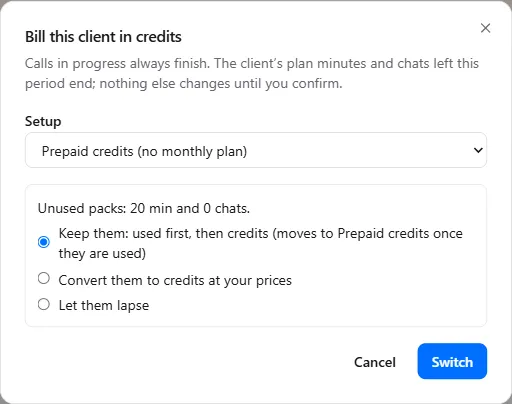
The client’s plan minutes and chats left this period end when it moves. Everything it already paid for in packs is kept unless you choose otherwise.
Move a client to a credits plan
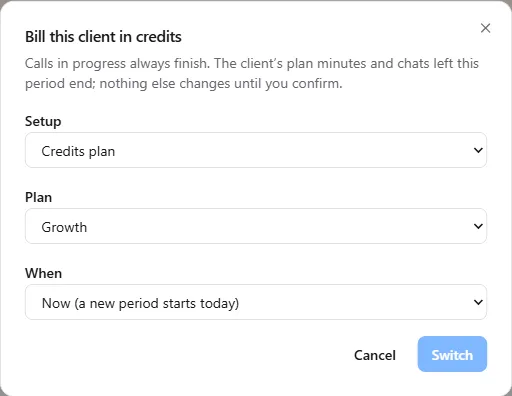
Section titled “Move a client to a credits plan”- Select Bill this client in credits and set Setup to Credits plan.
- Choose the Plan. Create one first on the Plans tab if the list is empty: see Set up credits.
- Choose When: Now (a new period starts today) or At the next renewal, so the client finishes the period it paid for.
- Choose what happens to unused packs: convert them to credits (the default for a credits plan) or let them lapse.
- Select Switch.
Keep the minutes plan and bill extras in credits
Section titled “Keep the minutes plan and bill extras in credits”This setup is for a client who wants to keep its fixed monthly plan. Its plan minutes, chats and packs are used first, as today. After that, calls and chats are paid from credits at your credit prices, instead of overflow minutes or extra chats.
- Select Keep the minutes plan, add credits for extras.
- Read the summary and select Switch. The plan stays exactly as it is.
- Add credits for the client, or send it a bundle request, so it has a balance ready for extras.
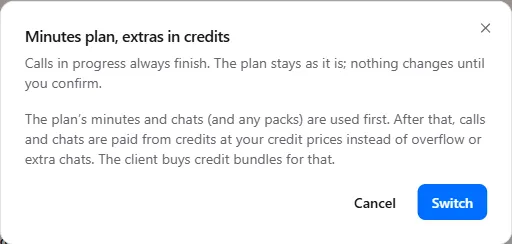
Your credit prices must be saved on the Credits tab before you can choose this setup.
Change or undo a client’s setup
Section titled “Change or undo a client’s setup”Once a client is on credits, the card shows Change credits setup and Move to a minutes plan.
When you move a client back to a minutes plan, you choose what happens to its credits:
- Keep them: the plan first, then the credits until they are used. The default.
- Let them lapse. If you owe the client for them, refund them by hand first.
Add, remove or write off credits
Section titled “Add, remove or write off credits”The client’s Credit balance card shows the balance, your prices, the bundles it can buy and its full history.
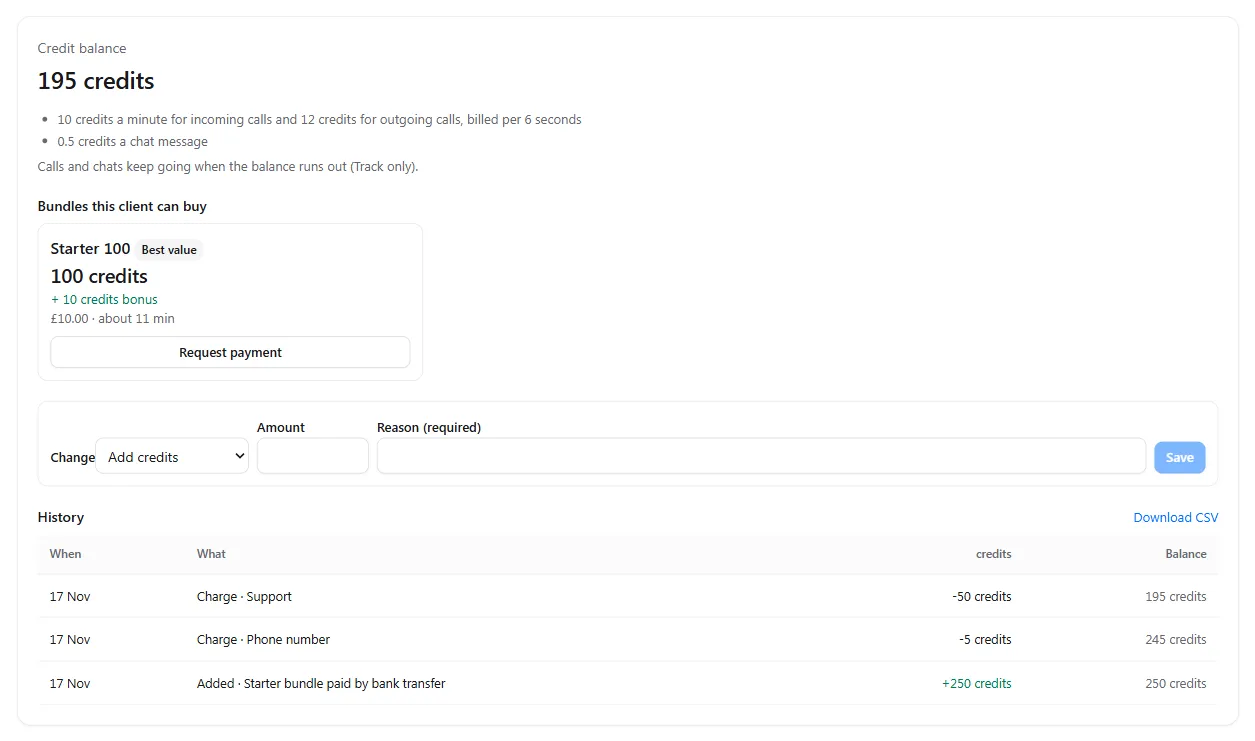
To change the balance, choose a Change, enter the Amount and a Reason, then select Save:
| Change | Use it for |
|---|---|
| Add credits | A bundle paid outside the portal, or credits you agreed to give |
| Add promo credits | Goodwill, a launch offer or a referral reward |
| Remove credits | Credits added by mistake, or credits you refunded. The balance never goes below zero. |
| Write off amount owed | Shown when the client owes credits. Clears the amount owed. Agency owner only. |
The reason is required and appears in the client’s history, which the client can see, so write it for the client to read.
Selling a bundle to the client. Under Bundles this client can buy, select Request payment to send a payment request for a bundle, or Send card link for clients who pay by card. The credits are added when the payment is recorded.
History. Every credit added, used, charged, expired or refunded is listed, with the balance after it. Select Download CSV for up to 500 rows.
Change settings for one client
Section titled “Change settings for one client”Each client on credits follows your agency setup unless you change it. Select Change for this client on its Credit settings card.
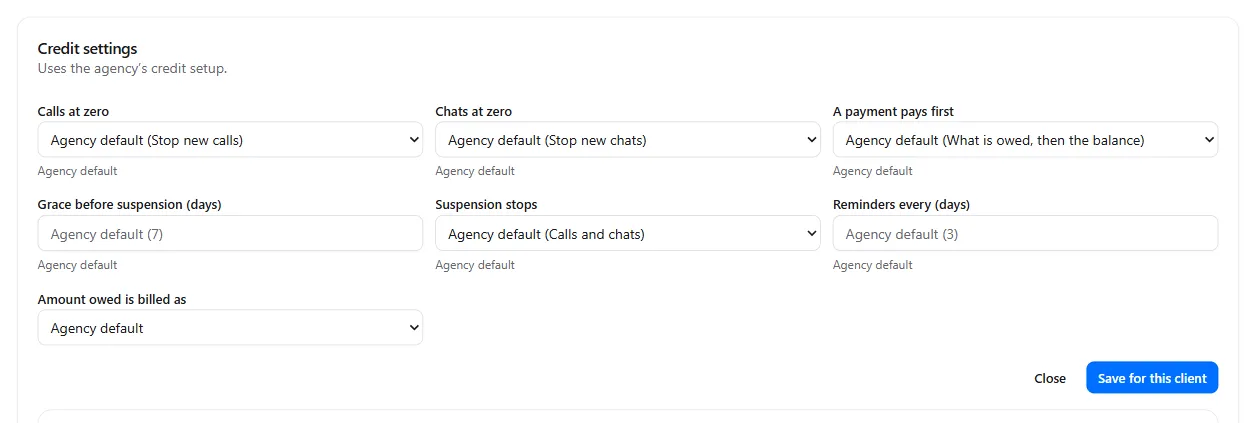
You can change for this client only:
- Calls at zero and Chats at zero
- A payment pays first
- Grace before suspension (days), Suspension stops and Reminders every (days)
- Amount owed is billed as
- which emails it gets, on the email switches below the fields
Under each field it says where the value comes from: Set for this client, Set on the plan or Agency default. Select Save for this client, or Use the agency setup to go back to your defaults. Prices are the same for every client.
What your client sees
Section titled “What your client sees”When the client opens its Billing page, it sees Your balance, your prices if you show them, the bundles it can buy and its history.
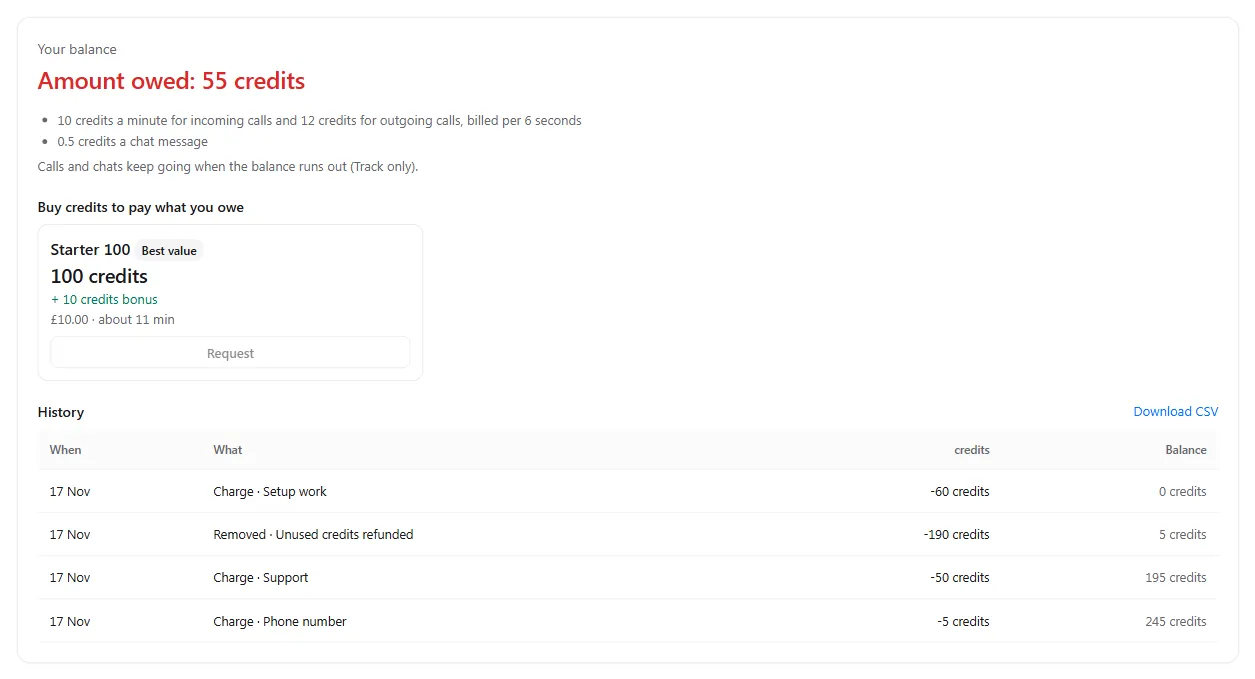
- Buy now pays by card through your Stripe account. Request sends you a request for the bundle.
- With a saved card, the client can turn on auto top-up: when its balance falls to the level it chooses, a bundle is bought for it.
- Your credit terms are shown before every card payment.
- The client never sees your costs, your margin or your settings.
To see exactly what your client sees, use View as client on its pages.
Troubleshooting
Section titled “Troubleshooting”| You see | Why | What to do |
|---|---|---|
| No Bill this client in credits button | The client has no billing set up yet | Switch billing on for the client first. See Bill a client. |
| Switch is refused with a reason in red | Something must finish first, such as a pack request waiting | Settle what it says, then try again. |
| A warning that usage can’t be read | The client’s provider API key isn’t working, so calls can’t be charged | Update the key in Client settings. See Update a provider API key. |
| Credits plan is greyed out | You have no credits plan yet | Create one on the Plans tab. |