Sell quarterly and annual plans
Sell a client a plan paid every 3, 6 or 12 months, such as a year of your monthly plan for the price of 10 months. You get paid up front, the client commits for longer, and its minutes and chats still arrive every month, so usage warnings, overflow, rollover and packs work exactly as they do today.
This guide takes you from creating the plan to the first renewal, with a screenshot at every step.
What you can do
Section titled “What you can do”| You can | Where |
|---|---|
| Create a plan billed every 3, 6 or 12 months, priced for the whole term | Client billing, Plans, New plan |
| See the saving against your monthly plan while you set the price | Compare with (optional) on the plan form |
| Put a new client on a longer plan | The client’s Client settings, Client billing |
| Move a monthly client to a longer plan, at its next renewal or today | The client’s Billing page, Change plan |
| Charge once per term: a payment request, a Stripe invoice or a card charge | Automatic, from how the client pays you |
| Let a client cancel or change only at the end of what it paid for | Cancel at term end and Change plan |
| Remind you and the client 30 and 7 days before the plan renews | Automatic emails |
| Let clients choose a longer plan themselves | Let clients change their plan |
How a longer plan works
Section titled “How a longer plan works”| On a plan paid every 3, 6 or 12 months | |
|---|---|
| Payment | One payment per term, at its start, described with both dates, for example “Growth 500 (annual), 11 Nov 2026 to 11 Nov 2027”. |
| Minutes and chats | Added every month, as on a monthly plan. Unused ones follow the plan’s rollover rule each month, so a quiet month never banks a year of minutes. |
| Overflow and extra chats | Billed every month, as on a monthly plan. |
| Changes and cancelling | Wait for the end of the paid term, unless you choose Start now. |
| Renewal | Another term at the same price, unless the plan is cancelled. You and the client get an email 30 days and 7 days before. |
Before you start
Section titled “Before you start”- Client billing is on for your agency. See Set up client billing.
- You know how the client pays you: payment requests you mark paid, Stripe invoices, or a card on file. See Manual payments or Stripe.
- You are the agency owner or an admin.
Step 1: Create the plan
Section titled “Step 1: Create the plan”-
Go to Client billing, then Plans, and select New plan.
-
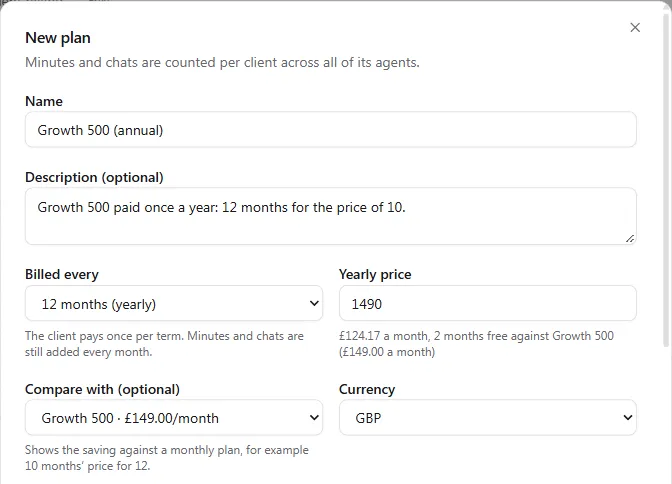
Name the plan so the client sees the term at a glance, for example Growth 500 (annual).
-
Under Billed every, choose 3 months, 6 months or 12 months (yearly). The price field becomes Price every 3 months, Price every 6 months or Yearly price, and the hint reads “The client pays once per term. Minutes and chats are still added every month.”
-
Enter the price for the whole term, for example
1490for a year of a £149 monthly plan (12 months for the price of 10). Under the price you see what it comes to per month. -
Optional: under Compare with (optional), choose the monthly plan it replaces. The hint shows the saving, for example “£124.17 a month, 2 months free against Growth 500 (£149.00 a month)”. The comparison only helps you set the price; it isn’t saved with the plan.
-
Enter the minutes, overflow and chats per month, exactly as for a monthly plan. The client gets them every month of the term.
-
Select Create plan.
The Plans table shows each plan’s price for its term, such as £1,490.00/year or £400.00/3 months, and lists each longer plan next to the monthly plan of the same monthly price.
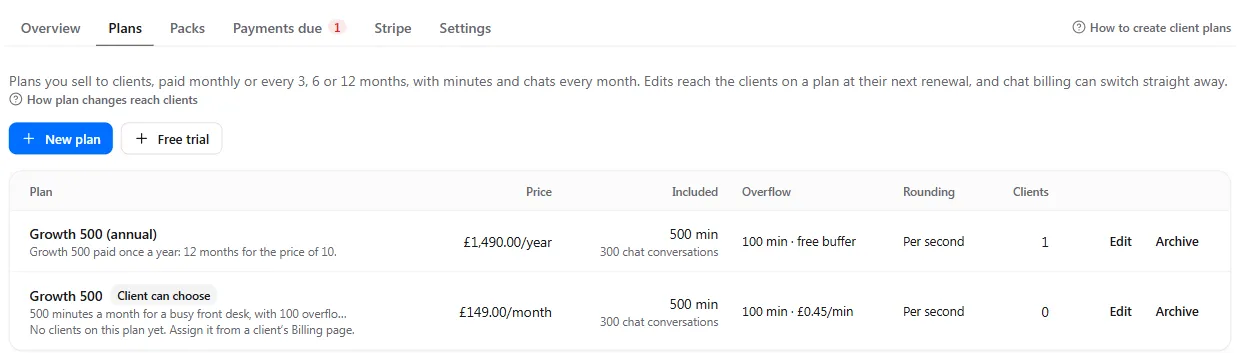
A plan’s term can’t change once clients are on it, so its clients are never moved to a different payment cycle by an edit. To offer another term, create a new plan. Free trial plans are always free and have no term; a trial can lead to a plan of any length (see Step 6).
Step 2: Put a client on the plan
Section titled “Step 2: Put a client on the plan”A new client
Section titled “A new client”-
Open the client and select Client settings. Under Client billing, choose Track only or Track and enforce.
-
In Switch billing on, under Plan, choose the longer plan, for example Growth 500 (annual) · 500 min · 300 chat conversations · £1,490.00/year.
-
Select Switch on.
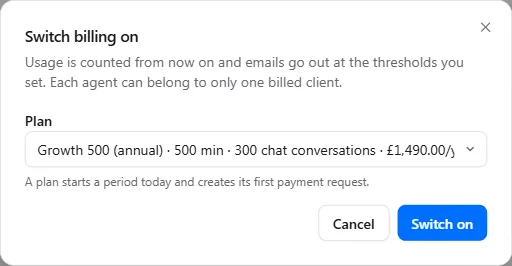
The first term starts today and its payment is requested straight away (see Step 3).
A client already on a monthly plan
Section titled “A client already on a monthly plan”-
Open the client and select Billing, then Change plan.
-
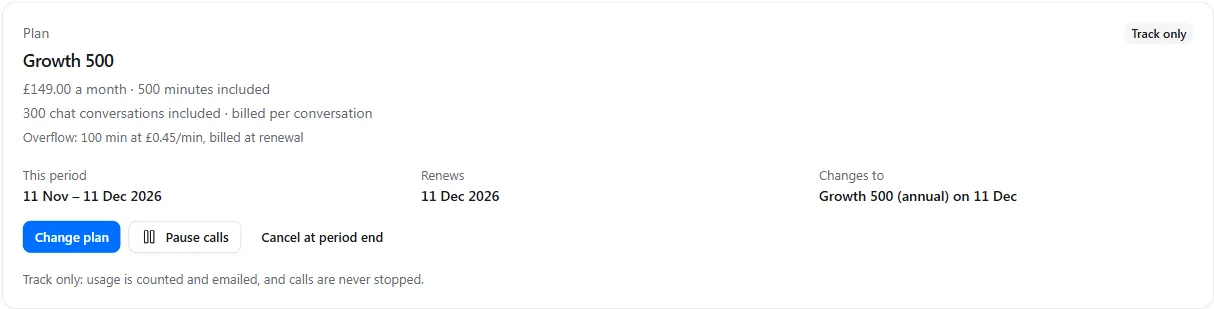
Choose the longer plan. The dialog says when it starts, for example “Starts at the next renewal, on 11 Dec 2026, because Growth 500 (annual) is paid a year.”
-
Choose when the client moves:
- At its next monthly renewal (the default): leave Start now unticked. The client finishes the month it has paid for, so nothing is paid twice.
- Today: tick Start now. A new term starts today with its own payment request. The month’s unused minutes and chats are added on top, as with any move to a bigger plan.
-
Select Save plan.
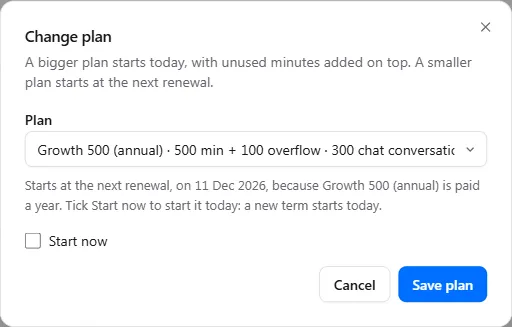
Until the move, the plan card shows what is coming, for example Changes to Growth 500 (annual) on 11 Dec. To call it off, select Change plan, choose the current plan and select Save plan.
Step 3: Get paid for the term
Section titled “Step 3: Get paid for the term”Each term is paid once, at its start, by the way the client pays you:
| The client pays by | What happens at the start of each term |
|---|---|
| Payment requests (manual) | A payment request for the term’s price, emailed to the client’s billing contacts. Mark it paid when the money arrives. See Get paid manually. |
| Stripe invoice | Stripe emails an invoice for the term’s price on the day the term starts. |
| Card | Stripe charges the card on file for the term’s price on the day the term starts. |
On the client’s Billing page, Payments shows the request for the whole term with both dates:
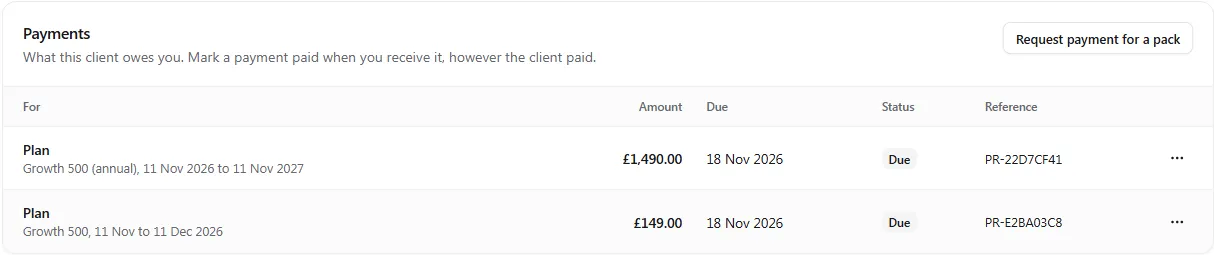
- Minutes waiting for payment. With Monthly minutes are added set to When you mark the payment paid, the first month’s minutes wait for the term’s payment. Once it’s paid, every month of the term starts with its minutes, with no further payment.
- Overflow and extra chats. Billed every month inside the term: as a payment request, or with Stripe on a separate invoice during the term and on the renewal invoice at its end.
- Stripe. A move between plans of different lengths is scheduled in Stripe for the end of the paid term, so the client is never charged twice. See Manual payments or Stripe.
Step 4: Follow the term on the plan card
Section titled “Step 4: Follow the term on the plan card”The client’s Billing page shows where the client is in its term:
| Field | Shows |
|---|---|
| This period | The current month, whose minutes and chats are in use |
| Renews | The end of the paid term, when the next payment is due |
| Paid term | The dates the client has paid for |
| Allowance resets | When the month’s minutes and chats start again |
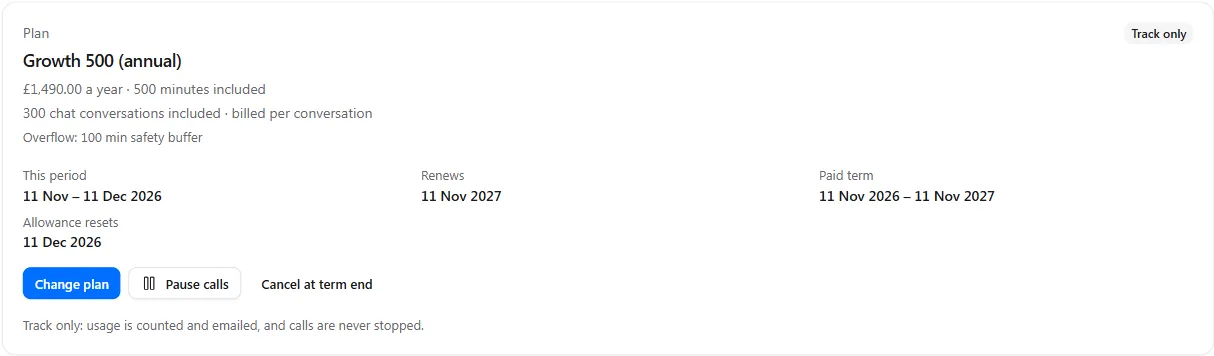
When billing is shown to the client, its own Billing page says when the plan renews, the dates it has paid for and when its minutes and chats next reset, for example “Paid 11 Nov 2026 to 11 Nov 2027 · minutes and chats reset every month, next on 11 Dec 2026”.

Step 5: Change or cancel during a term
Section titled “Step 5: Change or cancel during a term”The client has paid for the whole term, so every change waits for its end: a bigger or smaller plan, a plan of another length, and a cancellation. You choose Start now when you and the client agree to change today.
Change the plan
Section titled “Change the plan”-
On the client’s Billing page, select Change plan.
-
Choose the new plan. The dialog says “The client has paid until 11 Nov 2027, so a change starts then.”
-
To start it today instead, tick Start now. A new term starts today with its own payment. Nothing is credited for the paid term and its bill stays due, so make any refund or credit you agree with the client in Stripe or your own records.
-
Select Save plan.
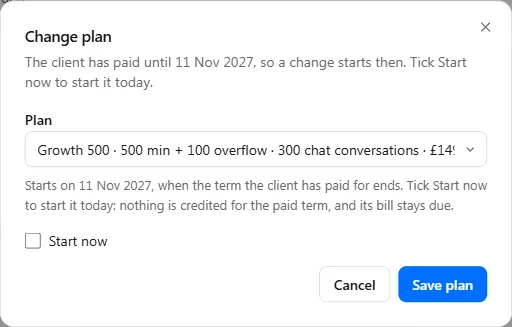
The plan card shows the waiting change with its date and year, for example Changes to Growth 500 on 11 Nov 2027.
Cancel at the end of the term
Section titled “Cancel at the end of the term”Select Cancel at term end. The plan ends when the paid term ends, and the client keeps its minutes and chats every month until then. The card shows Ends 11 Nov 2027 and Renews: No (cancelled), and no renewal notices are sent.
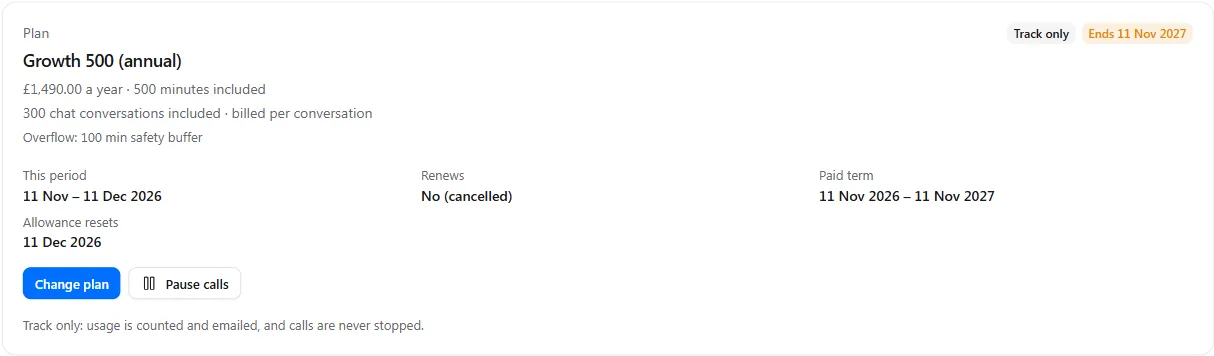
To undo a cancellation, select Change plan, keep the current plan and select Save plan. The plan renews again at the end of the term.
Step 6: Start with a free trial, or let clients choose
Section titled “Step 6: Start with a free trial, or let clients choose”- Free trials. A trial can lead to a plan of any length. The terms the client accepts name the price and the term, for example “Then Growth 500 (annual), £1,490.00 a year, charged to your card on 25 Nov 2026 unless you cancel before.” See Offer your clients a free trial.
- Clients who change their own plan. Mark the longer plan Clients can switch to this plan and clients see it with its price per term. The same dates apply to their changes, and a Minimum term before a smaller plan or cancelling is counted in whole terms: a 12-month minimum on a quarterly plan is four quarters. See Let clients change their plan.
Renewal notices
Section titled “Renewal notices”30 days and 7 days before a longer plan renews, you and the client get an email with the date, the price, what the payment covers and how to cancel. The client’s copy goes to its billing contacts when Billing emails to the client is on in its Client settings.
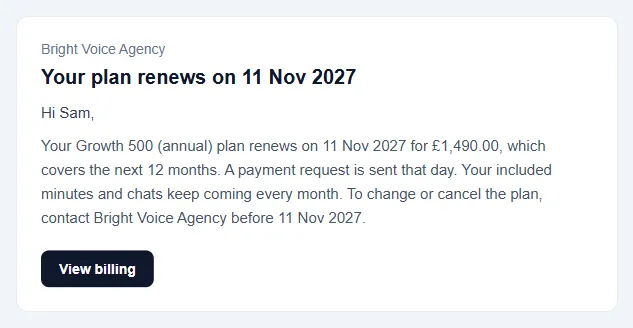
Each notice goes once per term. None is sent for a plan that is cancelled, still on a free trial, or moving to a monthly plan at the renewal. Some places require notice before an automatic renewal: the email gives you and your client a dated record. Your own terms with the client still apply.
Your margin
Section titled “Your margin”On the Margin page, an annual payment counts across the 12 months it pays for, not all in the month it was paid, so each month’s margin compares like with like.
Troubleshooting
Section titled “Troubleshooting”| You see | Why | What to do |
|---|---|---|
| A change says it starts at the end of the term | The client has paid for the term | Leave it to start then, or tick Start now to start today. |
| A monthly client’s move to annual waits a month | It moves at its next renewal, so the paid month isn’t paid twice | Tick Start now to start the annual term today. |
| You can’t change a plan’s Billed every | Clients are on the plan | Create a new plan with the term you want, and move clients to it. |
| A trial plan has no Billed every | Trials are free and have no term | Choose the longer plan as the plan the trial moves to. |
| No renewal email reached the client | Billing emails to the client is off, the client has no billing contact, or the plan is cancelled or moving to a monthly plan | Turn the emails on and add a billing contact in Client settings. |
| Two payments due after Start now from monthly | The month’s request stays as it was | Void it under Payments if the annual payment replaces it. |