Stop and restart clients on their own
When a client uses up the minutes or chats it paid for, the portal can stop its new calls and chats for you, and start them again by itself as soon as the client buys more. Nobody has to change a limit by hand: buying a pack, paying a request or the plan renewing is enough.
This guide sets it up for one client, with a screenshot at each step.
What happens, in short
Section titled “What happens, in short”| When | What happens |
|---|---|
| The client runs out of minutes | New outbound calls and campaigns stop straight away. New inbound calls stop once the agency owner turns on Stop inbound calls and chats at the provider for the client. |
| The client runs out of chats | New chats stop on Retell AI SMS, ElevenLabs WhatsApp and ElevenLabs chat-only agents once Stop inbound calls and chats at the provider is on. WhatsApp and SMS campaigns pause straight away. |
| A call or chat is in progress | It always finishes. Nobody is cut off mid-conversation. |
| The client buys a pack, or you record its payment | The minutes or chats are added and everything starts again within a minute, by itself. |
| Auto top-up is on | A pack is bought before the client runs out, so nothing stops. |
| The plan renews | The new month’s minutes and chats arrive and everything starts again. |
Before you start
Section titled “Before you start”- Client billing is on for your agency and the client has a plan. See Set up client billing and Create client plans.
- You have at least one minute pack or chat pack the client can buy. See Create minute and chat packs.
- To let clients pay by card and use auto top-up, your Stripe account is connected. See Connect Stripe. Without Stripe, clients request packs and you mark them paid.
- You are the agency owner or an admin. Step 4 needs the agency owner.
Step 1: Put the client on Track and enforce
Section titled “Step 1: Put the client on Track and enforce”-
Open the client and select Client settings in the Agency only box.
-
Go to Client billing. Under Billing for this client, choose Track and enforce. It reads “Calls stop when minutes and overflow run out, or while you pause them.”

With Track only, nothing ever stops: usage is counted, you and the client are warned, and extra use is recovered or billed.
Step 2: Choose what stops
Section titled “Step 2: Choose what stops”Under Options on the same page, check the switches. Each one shows Agency default until you change it for this client.
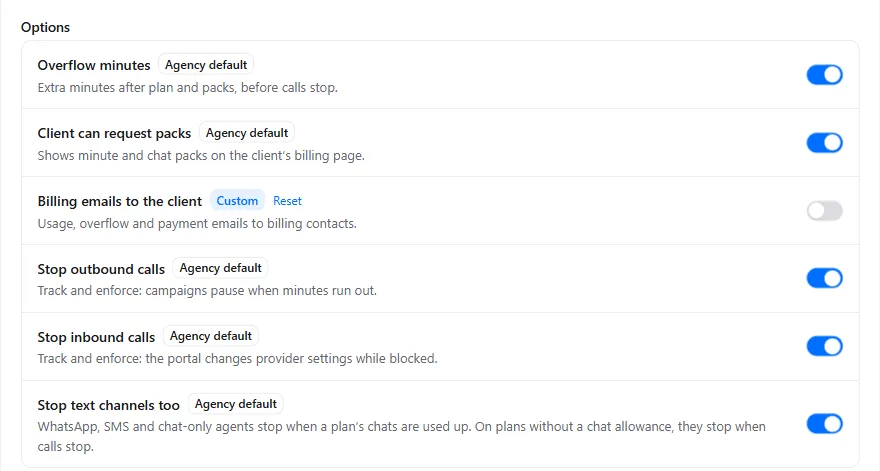
| Switch | Leave it on to |
|---|---|
| Stop outbound calls | Stop calls and campaigns placed from the portal. Campaigns pause and carry on by themselves when minutes come back. |
| Stop inbound calls | Refuse new inbound calls while the client is out of minutes. |
| Stop text channels too | Stop WhatsApp, SMS and chat-only agents when the plan’s chats are used up. On a plan without a chat allowance, they stop with the calls. |
| Client can request packs | Show your packs on the client’s Billing page, so it can buy more itself. |
To stop as soon as the plan and pack minutes are used, turn Overflow minutes off for the client, and leave Unlimited overflow off. With overflow on, the client gets the plan’s overflow minutes as a buffer first.
For chats, new chats stop when the plan’s chats, the client’s chat packs and any extra chats the plan allows are used. The cap on extras is Extra messages allowed per month (optional) (or Extra conversations allowed per month (optional)) on the plan; leave it empty to stop right at the allowance.
Step 3: Check the API key can make the changes
Section titled “Step 3: Check the API key can make the changes”Stopping inbound calls and chats works by changing settings in the client’s Retell AI, Vapi or ElevenLabs account while the client is out, and putting them back exactly when it can use them again. The client’s API key must be allowed to change its numbers and agents. For Retell AI, give the key Phone Edit access. See Connect Retell AI, Connect Vapi and Connect ElevenLabs.
Step 4: Turn on Stop inbound calls and chats at the provider
Section titled “Step 4: Turn on Stop inbound calls and chats at the provider”This switch is off for every client until the agency owner turns it on, so nothing in a provider account changes until you choose.
-
Open the client and select Billing. Scroll to Enforcement and check the badges: Track and enforce, Outbound blocked when out and Inbound blocked when out.
-
Turn on Stop inbound calls and chats at the provider. The dialog lists every number or agent the portal would change while the client is out, and any it leaves alone, such as a number that already uses your own webhook.
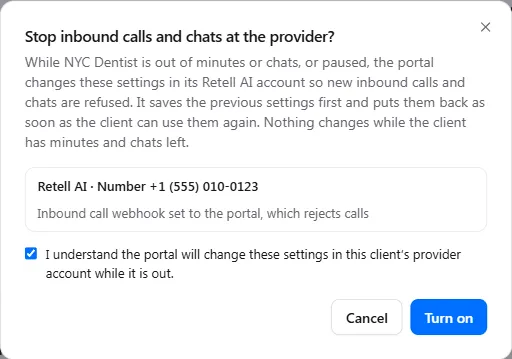
-
Tick “I understand the portal will change these settings in this client’s provider account while it is out” and select Turn on.
The card now shows the switch on, who turned it on and when. Show what changes lists the same changes at any time.
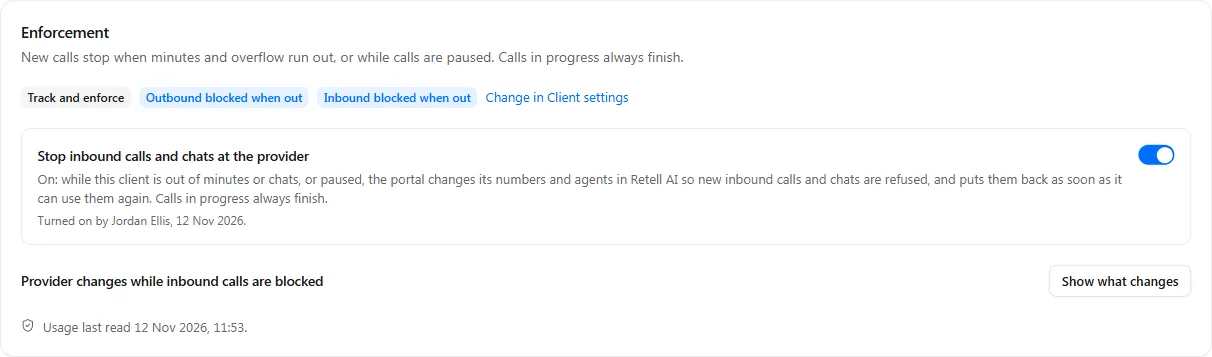
- Nothing changes at the provider while the client has minutes and chats left. If it is already out of minutes or paused when you turn this on, new inbound calls are refused straight away.
- Turning the switch off puts every changed setting back at once.
- Only the agency owner can turn it on or off. Admins see it read only.
- If a change fails, for example because the key can’t edit numbers, the card shows “A provider change failed” and your team gets one email a day for that client. The portal tries again every minute.
With the switch off, outbound calls, campaigns and WhatsApp sends from the portal still stop and start again by themselves. Inbound calls and chats carry on and are counted, and the banner and email say only outbound calls have stopped.
Step 5: Make it easy to buy more
Section titled “Step 5: Make it easy to buy more”The fastest way back is the client buying a pack itself.
-
Minute and chat packs. Create them under Client billing, Packs. A chat pack holds chat messages or chat conversations, the same as the client’s plan.
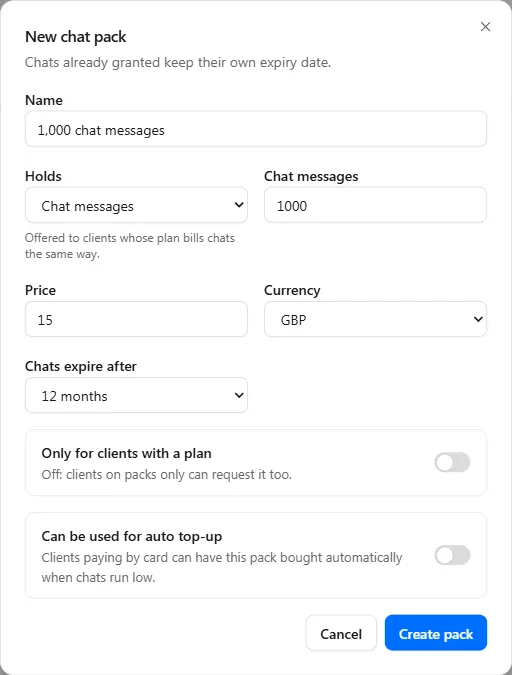
-
Auto top-up. With Stripe connected, the client can have a pack bought automatically before it runs out, so its calls and chats never stop. The client turns it on from its Billing page and agrees to the terms; you see them on yours.

When a client runs low or runs out, its banner and the usage emails show Buy more (or Add minutes, Add chat messages) straight to your packs.
What happens when the client buys more
Section titled “What happens when the client buys more”| How | When the minutes or chats arrive |
|---|---|
| The client selects Buy now and pays by card | As soon as the payment goes through |
| The client requests a pack and you select Mark as paid | When you record the payment |
| You select Grant minutes now, collect later (or Grant chats now, collect later) on the payment | Straight away, before the money arrives |
| Auto top-up buys a pack | When the top-up payment goes through |
| You select Add minutes or add chats by hand | Straight away |
| The plan renews | At the renewal |
Then, within a minute and with nothing for you to do:
- every provider change is put back, so inbound calls and chats connect again;
- campaigns paused for minutes or chats carry on;
- the Calls have stopped banner clears, and you and the client get an email: calls have resumed, or “Your chats are working again” for chats.
- your team gets an email when a client buys a pack by card or auto top-up buys one.
The new minutes show under Packs and extras left on the client’s Minutes this period card.

Minutes over the limit are taken first. Calls in progress always finish, so a client can end a few minutes over. Those minutes come out of the next pack: a client 4 minutes over that buys 100 has 96 to use.
Extra chats stay billed, unless you choose otherwise. Extra chats used before the pack (chats past the allowance that the plan allowed) are billed at renewal at the plan’s price per extra chat, when it has one, and the pack’s chats are all for new chats. With Chat packs pay for extra chats first on (owner: Client billing, Settings, Defaults for clients), a pack first pays for those extra chats instead.
What stays as you set it
Section titled “What stays as you set it”- Fixed limits inside the package. A limit on one WhatsApp number, website, agent or channel set as a fixed number stays as you set it, and a pack doesn’t raise it. A source paused by it starts again when the period resets, or straight away when you raise the limit under Limits inside the package on the client’s Billing page. Set limits as a share of the package instead and they grow with every pack, so nothing needs changing by hand. See Chat limits per website and number.
- A client you paused. If you paused the client, or it was paused for an overdue payment, minutes alone don’t restart it. Select Resume calls on the Plan card.
Calls and chats in progress
Section titled “Calls and chats in progress”Running out only stops new calls and chats. A call in progress always finishes, on every provider. A WhatsApp conversation already open carries on until it closes, 15 minutes after the agent’s last reply. Vapi chats, and Retell AI chats outside SMS, keep going and count as extra chats. For what callers and chat users see, provider by provider, see What callers hear when calls are blocked.
Troubleshooting
Section titled “Troubleshooting”| You see | Why | What to do |
|---|---|---|
| Inbound calls still come in after the minutes ran out | Stop inbound calls and chats at the provider is off for this client, or Stop inbound calls is off | Turn them on as in steps 2 and 4. |
| Chats keep going after they ran out | Stop text channels too is off, the client is on Track only, Stop inbound calls and chats at the provider is off, or the chats are on Vapi | Check the switches in steps 2 and 4. |
| The card says “A provider change failed” | The client’s API key can’t change its numbers or agents | Give the key edit access (step 3). The portal tries again every minute. |
| The client paid by card but the minutes aren’t there yet | They are added as soon as the client is back on its Billing page from Stripe, which checks the payment there and then | Check Card purchases on the client’s Billing page. A payment the client never returned from is picked up within a day. If it still doesn’t show Paid, contact us. |
| The client bought a pack but one website or number is still paused | A limit inside the package was reached | Raise the limit, or wait for the period to reset. |
| Calls didn’t start again after a payment | The client is paused | Select Resume calls on the Plan card. |
| The client doesn’t see any packs | Client can request packs is off, or no pack is in its currency | See Create minute and chat packs. |