Chat limits per website and number
This guide is for a client that chats with its customers in more than one place but pays you once. One billing plan and one chat allowance cover all of it, and you choose how much each part may use.
Who this is for
Section titled “Who this is for”| Your client has | Example | What you set up |
|---|---|---|
| Several websites on one plan | A dental group with a website for each of its three practices, on one plan of 2,000 chat messages a month | One embed code per website, so you see each website’s chats, and a limit per website if one practice shouldn’t use up the others’ chats |
| Several chat agents sharing one allowance | A web chat agent on the website and a WhatsApp agent on two WhatsApp numbers, all on the same 2,000 chat messages | Each agent and number already counts on its own; add a limit per agent, number or channel if one shouldn’t use up the rest |
| Both | Three websites and two WhatsApp numbers | Both of the above: every chat on any of them draws on the one allowance |
In every case the client has one plan, one subscription and one payment, not a package per website or per number. The allowance is shared by every agent, website and WhatsApp number the client has. You then see exactly where the chats came from, and can set a limit on any part of the package, so one busy website can’t use up the chats a WhatsApp number needs.
A client with one website and no WhatsApp doesn’t need this guide: Bill your clients for chats covers it.
What you can do
Section titled “What you can do”| You can | Where |
|---|---|
| Give every website its own embed code, so its chats count per website | The client’s Web chat tab |
| See chats per WhatsApp number, website, agent and channel this period | The client’s Billing page, Chats this period |
| Cap one WhatsApp number, website, agent or channel each period | Billing, Limits inside the package |
| Get an email at 80% and at the limit, and optionally pause just that source | The limit itself |
| Show the client the same breakdown, read only | The client’s own Billing page |
Before you start
Section titled “Before you start”- The client has a plan with a chat allowance. See Bill your clients for chats.
- Client billing is on for the client (Track only or Track and enforce). See Bill a client.
- The client’s agents are on ElevenLabs, with WhatsApp & web chat switched on in its Client settings. See Set up web chat and Connect WhatsApp.
- You are the agency owner or an admin. Clients can see the breakdown, but only you set limits.
Step 1: Give each website its own embed code
Section titled “Step 1: Give each website its own embed code”The portal counts a website’s chats from a label in that website’s embed code, so every website gets its own code.
-
Open the client and select Client settings. Under WhatsApp & web chat, open the Web chat tab.
-
Under Agent, choose the agent that answers chats on the website.
-
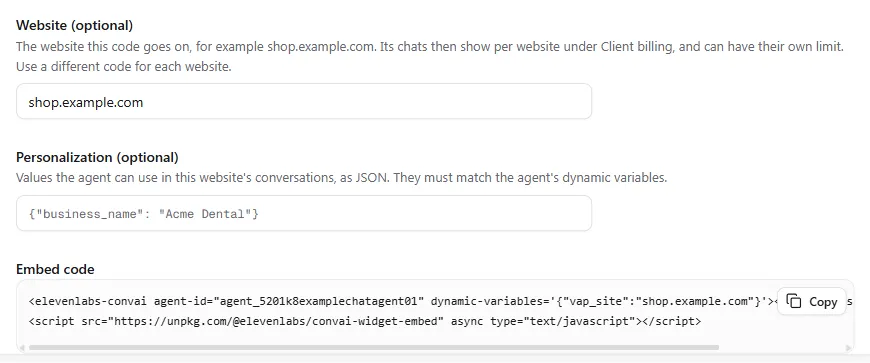
Under Website, enter the website’s address, for example
shop.example.com. You can paste a full link: the portal keeps the address only, sohttps://www.shop.example.com/contactbecomesshop.example.com. -
Copy the code under Embed code with Copy, and add it to that website, before the closing
</body>tag. -
Repeat for each website, with that website’s address.
Step 2: Link each WhatsApp number
Section titled “Step 2: Link each WhatsApp number”Each WhatsApp number is counted exactly, from the number every conversation used. Link every number the client uses on its WhatsApp tab: open Client settings, then WhatsApp & web chat, then WhatsApp, and select Link to this client under Numbers you can link. Choose one of this client’s agents under Agent answering this number. See Connect WhatsApp.
The client’s Numbers page shows each number’s own conversations and messages. Two numbers that share an agent each show their own figures. The card also flags two cases worth fixing:
| You see | What it means | What to do |
|---|---|---|
| Answered by another client’s agent | The number is answered by an agent that isn’t this client’s, so its chats count for that agent’s client. | Choose one of this client’s agents in Manage. |
| “…is answered by this client’s agent but not linked to this client” | Its chats count for this client, but limits and stopping can’t pause it. | Link it in Manage. |
Step 3: See where chats came from
Section titled “Step 3: See where chats came from”Open the client and select Billing. On Chats this period, Where chats came from this period shows the period’s chats per WhatsApp number, website, agent and channel, in the client’s unit.
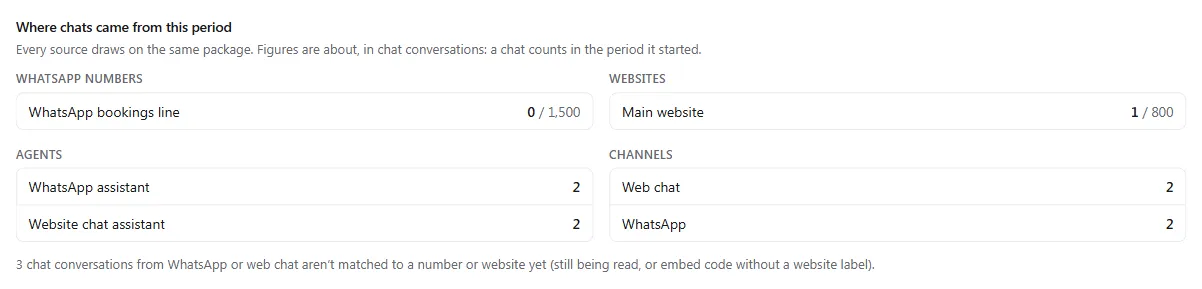
- Every source draws on the same package, so the rows add up to more than the package: one chat shows under its number or website, its agent and its channel.
- A chat counts in the period it started. A chat still open at renewal can bill a few messages in the new period, so the billed total can differ slightly.
- Chats from before a website had its own code, or still being read, show as “not matched to a number or website yet”.
- A source with a limit shows its use against the limit, for example 640 / 800, with a badge at 80%, Limit reached or Stopped.
Step 4: Add a limit
Section titled “Step 4: Add a limit”-
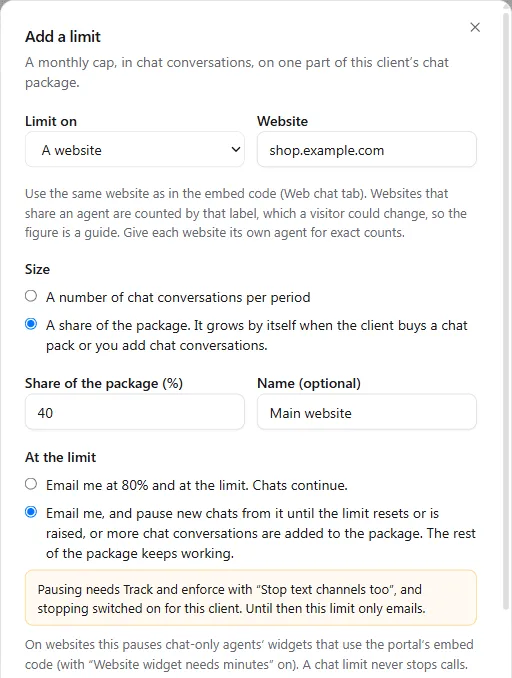
On the client’s Billing page, under Limits inside the package, select Add limit.
-
Under Limit on, choose A WhatsApp number, A website, An agent or A channel. Then choose the number, agent or channel from the list, or type the website exactly as in its embed code.
-
Under Size, choose A number of chat messages per period (or chat conversations, the client’s unit) and enter it, for example
800, or A share of the package and enter a percentage, for example40. A share grows by itself when the client buys a chat pack or you add chat messages, so the limit never needs raising by hand. Add a Name if you like, such as “Main website”. -
Under At the limit, choose:
- Email me at 80% and at the limit. Chats continue.
- Email me, and pause new chats from it until the limit resets or is raised. The rest of the package keeps working.
-
Tick Email the client’s billing contacts too if the client should get the emails as well.
-
Select Add limit.
Limits are ceilings, not reserved shares: they can add up to more than the package, and the package still ends every chat when it runs out. A limit resets with the package at each renewal.
Step 5: Change or remove a limit
Section titled “Step 5: Change or remove a limit”Every limit is listed under Limits inside the package, with what it covers, its size (a share shows what it is worth now, for example “40% of the package (800 chat messages now)”) and what happens at the limit. Select the pencil to change the size, the action, the name or the client emails, or the bin to remove it. Raising or removing a limit restarts a paused source straight away.

What happens at a limit
Section titled “What happens at a limit”| When | What happens |
|---|---|
| 80% of a limit | You get an email, once a period, for example “Acme Dental: Main website has used 80% of its chat limit”. |
| The limit | You get an email, once a period. With Email the client’s billing contacts too, they get one as well. |
| The limit, with pausing | New chats from that source pause until the limit resets or you raise it. The rest of the package keeps working. |
Usage is read every minute and a chat’s count settles when it ends, so a source can go a few chats past its limit before it pauses.
A limit is either a fixed number or a share of the package. A fixed limit stays as you set it when the client buys a chat pack. A share grows with the package, so a source paused by a share limit starts again by itself once the pack is added. A fixed limit starts again when the period resets or when you raise it. See Step 5.
Pausing uses the same provider changes as stopping chats when a package runs out, on Track and enforce with Stop text channels too. The agency owner turns these on for each client with Stop inbound calls and chats at the provider (see When chats run out). Where pausing isn’t on for a client yet, the Add a limit dialog says so, and its limits email you while chats continue.
| Limit on | What pauses |
|---|---|
| A WhatsApp number | WhatsApp messaging on that number: a new message gets no reply. A conversation already open carries on until it closes, 15 minutes after the agent’s last reply. |
| The WhatsApp channel | WhatsApp messaging on all the client’s linked numbers, the same way. |
| An agent | The WhatsApp numbers it answers, and new chats on a chat-only agent. |
| A website, or the web chat channel | Chat-only agents’ widgets on that website (or every website), with Website widget needs minutes on and the portal’s embed code on the site. |
A chat limit never stops calls: an agent that takes both calls and chats keeps taking calls, and its website widget keeps working.
What your client sees
Section titled “What your client sees”When billing is shown to the client, its Billing page shows the same Where chats came from this period breakdown, with each limit and its badge, read only. Clients can’t add, change or remove limits.
Troubleshooting
Section titled “Troubleshooting”| You see | Why | What to do |
|---|---|---|
| A website shows no chats | Its code has no Website label, or uses older code | Copy the code again from the Web chat tab with the Website field filled in. |
| Chats “not matched to a number or website yet” | Chats from before the label, or still being read | New chats are matched within a few minutes of ending. |
| A source is over its limit but chats continue | The limit only emails, pausing isn’t on for this client yet, or the agent also takes calls | Check At the limit, turn on Stop inbound calls and chats at the provider for the client (agency owner, client’s Billing page), or answer chats with a chat-only agent. |
| A paused WhatsApp number still replied | The customer’s conversation was already open when the pause started | It closes 15 minutes after the agent’s last reply; the next new message gets no reply. |
| A WhatsApp number shows Answered by another client’s agent | Its agent isn’t one of this client’s | Choose one of this client’s agents in Manage. |
| Test chats in the figures | They aren’t: chats started from Open test page never use the client’s package | Nothing to do. |