Set up client results emails
Results emails send each client a short report of what their AI handled, every week or month, from your own email address. Your client sees the value without logging in, and you approve the first one before it goes. Results emails are off until you switch them on for a client.
- You
Set hours and recipients
In Client settings
- You
Preview, then switch on
Results emails card
- Voice AI Portal
Prepares the first report
About a day before it goes
- You
Approve it
From the email, the card or Reports
- Your client
Client gets the report
From your email address
Before you begin
Section titled “Before you begin”- Every plan. Results emails are included in every Voice AI Portal plan. Your agency needs an active plan or trial for them to send.
- Owner or admin. Owners and admins set up clients and approve reports. Only the owner opens Settings and Email Hub. See Who can do what?
- Your own email sender. To send straight to a client, you need a connected and verified sender in Settings, then Email Hub: your own Resend account, SMTP server, SendGrid, Postmark or Mailgun. See Configure custom email. If you don’t have one yet, choose To me, to forward, which needs no sender.
- A client with agents selected. With no agents there is nothing to report. See Manage a client’s agents and numbers.
- The client’s time zone. Hours and send times follow it. Check it under Region.
How do I set up results emails for a client?
Section titled “How do I set up results emails for a client?”-
Open the client’s settings
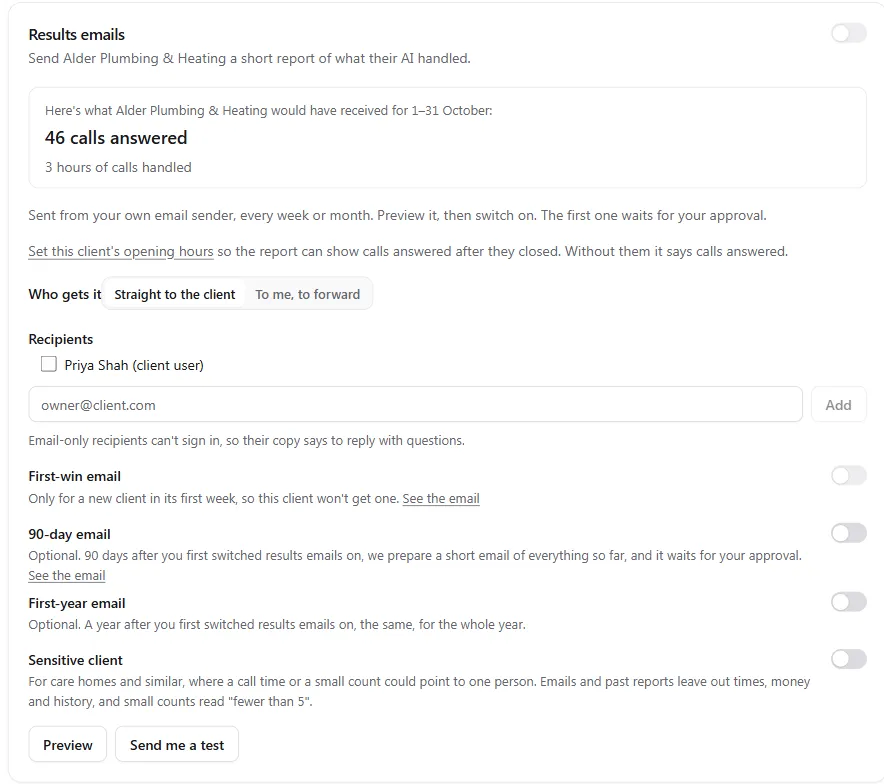
Open Reports in your sidebar and select Turn on next to the client. You can also use Off · Turn on on the Clients page, or open Client settings and scroll to Results emails.
-
Set the client’s hours
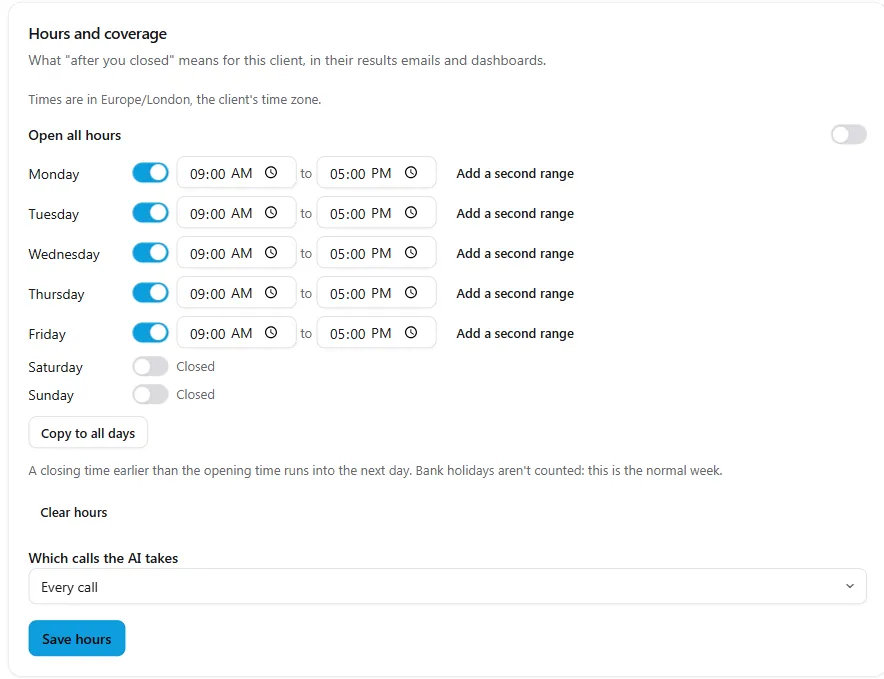
In Hours and coverage, select Set opening hours. Set each day, or turn on Open all hours, and use Copy to all days to save time. Under Which calls the AI takes, choose Every call, Overflow: calls the phone system passes to the AI or After hours only, then select Save hours.
This step is optional, and it is what lets a report say how many calls came in after the client closed. Without hours, the report says calls answered.
-
Confirm the staff rate, if you want a money figure
In Staff rates for reports, check the rate and select Confirm these rates. Until you do, reports show staff time without a money value. See Staff time handled.

-
Choose who gets it
Under Who gets it, choose Straight to the client or To me, to forward. For Straight to the client, tick the client users under Recipients, or type an address and select Add.
-
Preview it
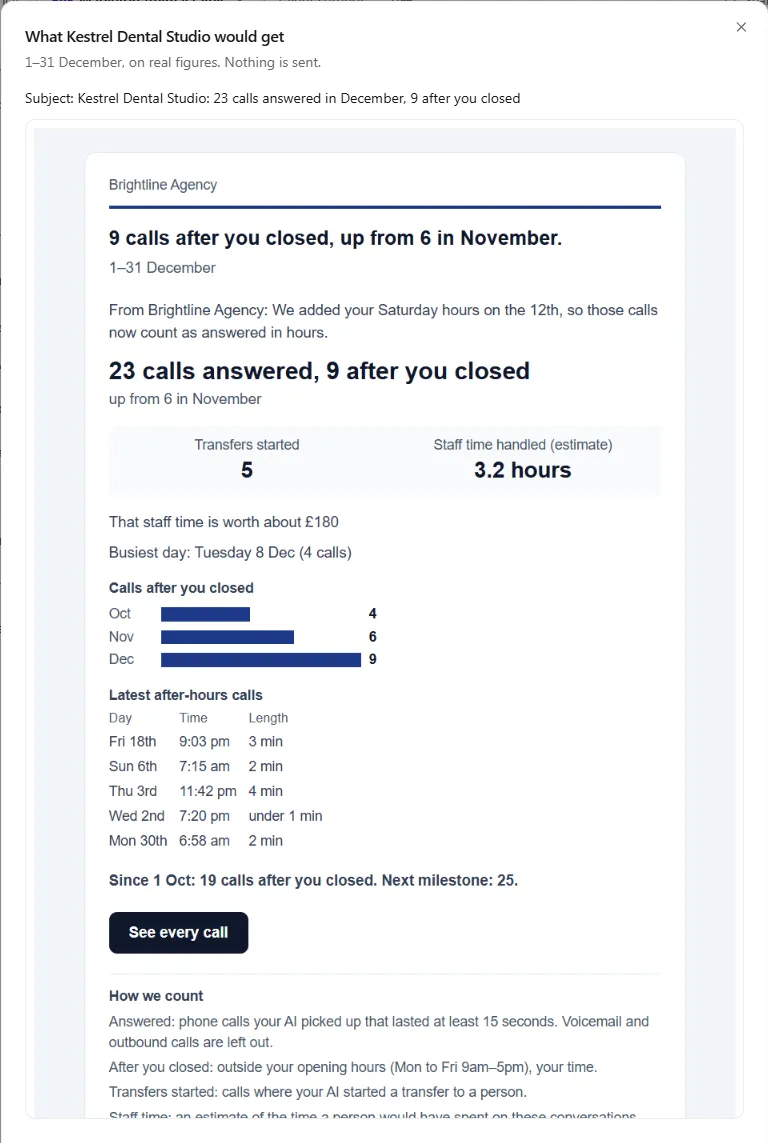
Select Preview to see the email for the last full period, on real figures. Nothing is sent. Send me a test sends a copy to you only.
-
Switch it on
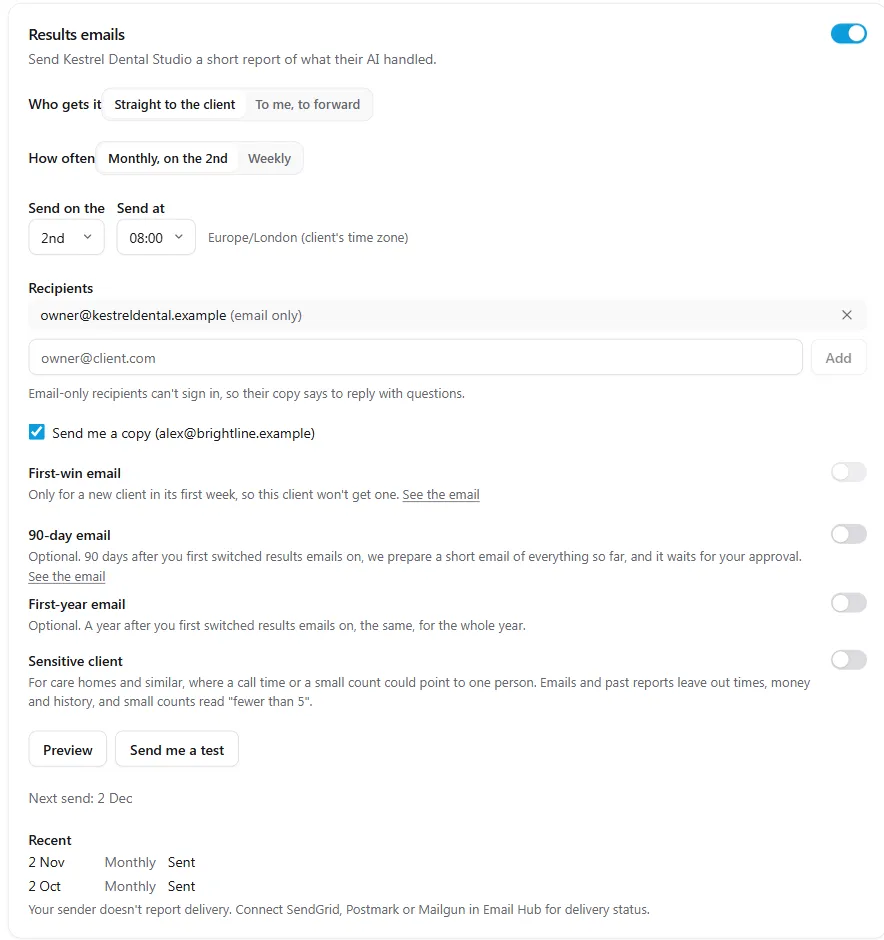
Turn on the Results emails switch at the top of the card. How often, the send day, Send at and Send me a copy then appear. Each change saves straight away.
-
Confirm a shared agent, if asked
If another client selects the same agent, both would report the same calls, so sends wait for you. If that is right, select This is right, send anyway before the send time.
How do I approve the first report?
Section titled “How do I approve the first report?”Every client’s first results email waits for you. The portal prepares it about a day ahead and emails you a copy with Approve and Skip this one buttons. Later reports go by themselves, and you get a copy first.
You can approve in three places, and all three do the same thing:
- the email the portal sent you, which works without signing in
- the client’s Results emails card
- the Reports page

Approve before the send time and it goes at the send time. Approve after and it goes within the hour. If nobody approves within 24 hours of the send time, it is skipped as Missed its send window, and Send now stays open for 7 days.
If you change a client’s hours, coverage or time zone, any report not yet sent is prepared again and comes back to you for review.
Who gets the report?
Section titled “Who gets the report?”| Straight to the client | To me, to forward | |
|---|---|---|
| Sent from | Your own email sender | The platform |
| Goes to | The recipients you choose, plus a copy for you | The person on Send me a copy, or your owners and admins |
| How often | Monthly or weekly | Monthly |
| Needs a sender and recipients | Yes | No |
| Appears in the client’s past reports | Yes | No |
| First-win, 90-day and first-year emails | Available | Off |
Client users get a See every call button. Email-only recipients can’t sign in, so their copy says to reply with questions. You can add up to 10 email addresses per client.
Every email has its own unsubscribe link. Only the recipient can reverse an unsubscribe. If an address bounces, it shows Bounced, not sent since. Check it, then select Try again.
When do reports go out?
Section titled “When do reports go out?”All times use the client’s time zone.
| Setting | Options |
|---|---|
| How often | Monthly, on the 2nd (or the 3rd, 4th or 5th) or Weekly on any day |
| Send at | 06:00 to 20:00, on the hour. The default is 08:00 |
| Period covered | Monthly: the last calendar month. Weekly: the last full Monday to Sunday |
The portal prepares each report about 24 hours before it goes, and you get your copy then. A report due at 08:00 goes shortly after. A report that can’t go within 24 hours of its time is skipped, never sent late.
A report only covers a period that ends after you switched on. Switch on during November and the first report covers all of November, sent in December. Switching off skips anything queued, and switching on again starts this count again.
How do I use the Reports page?
Section titled “How do I use the Reports page?”Open Reports in your agency sidebar to see every client at once. Use Search clients… to find one by name.
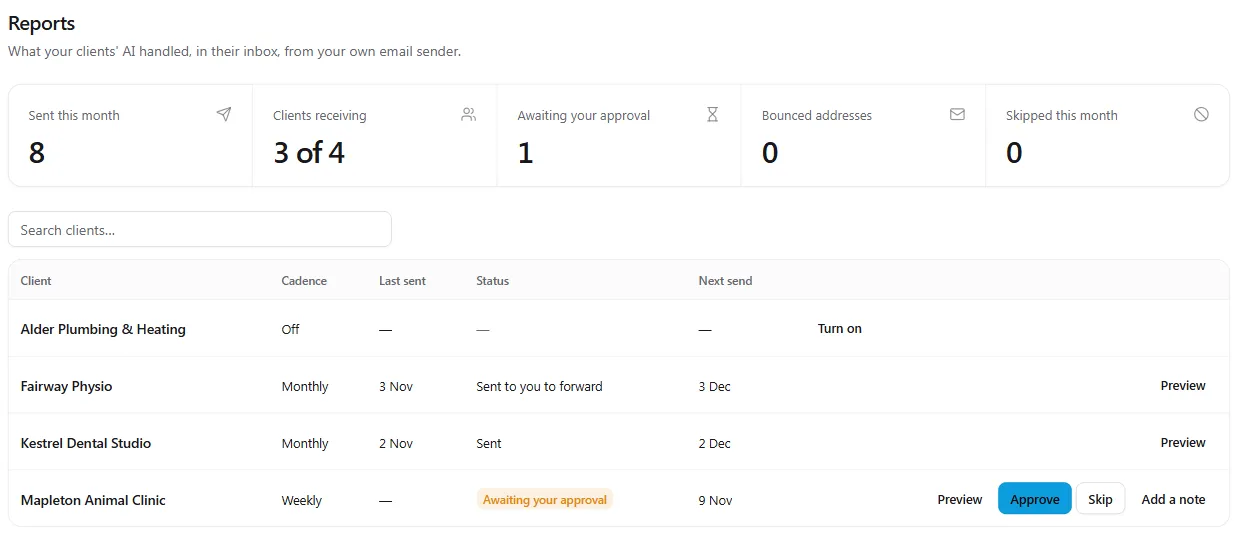
| Tile | What it counts |
|---|---|
| Sent this month | Emails to client recipients this month. Tests and your copies aren’t counted |
| Clients receiving | How many clients are switched on |
| Awaiting your approval | Reports waiting for you |
| Bounced addresses | Addresses that refused an email |
| Skipped this month | Reports that didn’t go, with the reasons |
Each row offers what you can do next: Turn on, Preview, Approve, Skip, Send now and Add a note. A Thin report badge means the latest report was quiet, and a line suggests a call before the next one goes.
Status can read Scheduled, Awaiting your approval, Waiting for complete figures, Sent, Sent to you to forward, Failed or Skipped. Select the recipient count to see each address, marked Sent, Delivered, Bounced or Not sent. Delivered needs SendGrid, Postmark or Mailgun as your sender.
How do I add a note to a report?
Section titled “How do I add a note to a report?”A note goes at the top of one report, in your agency’s name. Use it to say what changed or what comes next.
-
Open Reports and find a report that has been prepared and not yet sent.
-
Select Add a note, type up to 280 characters, then select Save note.
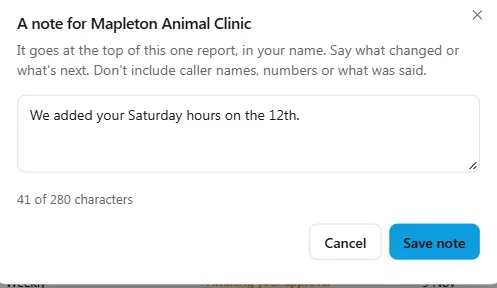
Don’t include caller names, numbers or what was said. To change it, select Edit note.
What if calls couldn’t be taken?
Section titled “What if calls couldn’t be taken?”If 3 or more inbound calls couldn’t be taken in a period, the report waits for you for 7 days, whatever the reason. You see the count and the cause. If the problem is fixed and you want the client to know, tick It’s fixed. Tell the client on the card or the Reports page, then approve. The client reads a plain line about a service problem that is now fixed, and never the cause.
With 1 or 2 lost calls, you see them and the report goes as normal. Client health shows you these problems as they happen.
How do I set defaults for new clients?
Section titled “How do I set defaults for new clients?”The agency owner sets these under Settings, then Results emails.
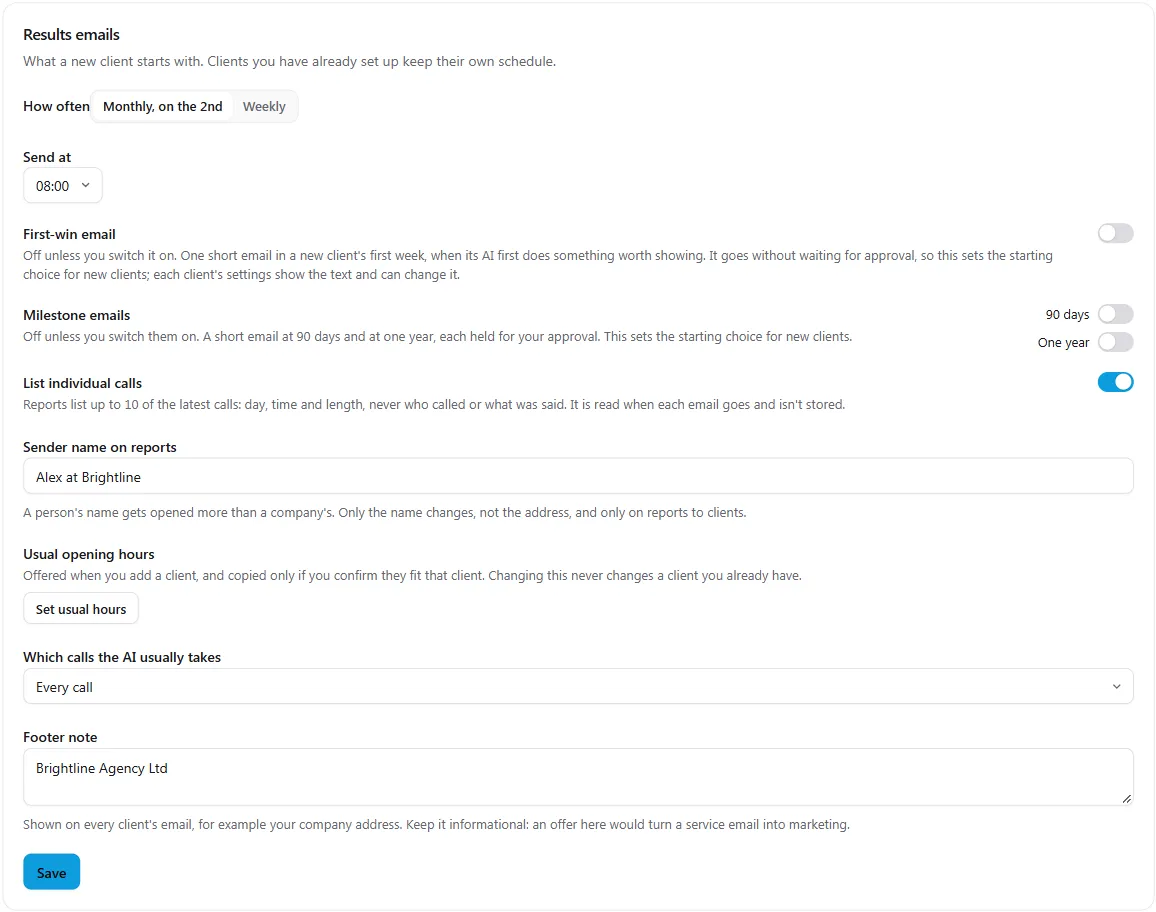
| Setting | What it does | Applies to |
|---|---|---|
| How often, Day, Send at | The starting schedule | New clients |
| First-win email, Milestone emails | The starting choice | New clients |
| Usual opening hours, Which calls the AI usually takes | Offered when you add a client, and copied only if you confirm they fit | New clients |
| List individual calls | Reports list up to 10 of the latest calls: day, time and length, never who called or what was said | Every client |
| Sender name on reports | The name your client sees, for example a person’s name. The address stays the same | Every client |
| Footer note | Shown on every client’s email, for example your company address. Keep it informational | Every client |
What are the first-win and milestone emails?
Section titled “What are the first-win and milestone emails?”These are optional extras on the client’s card, and they are off unless you switch them on.
- First-win email: one short email in a new client’s first week, when its AI answers an after-hours call or its tenth call. It goes without waiting for approval, so read the sample with See the email first.
- 90-day email: on day 90 after you first switched results emails on, a short email of everything so far. It waits 7 days for your approval.
- First-year email: the same, after a year, for the whole year.
What does Sensitive client do?
Section titled “What does Sensitive client do?”Turn on Sensitive client for care homes and similar, where a call time or a small count could point to one person. Emails and past reports leave out times, money and history, and small counts read “fewer than 5”.
Who can do what?
Section titled “Who can do what?”| Who | Reports page | Client’s Results emails card | Approve, skip, send, add a note | Settings, Results emails |
|---|---|---|---|---|
| Agency owner | Yes | Yes | Yes | Yes |
| Agency admin | Yes | Yes | Yes | No |
| Member | No | No | No | No |
| Client user | No | No | No | No |
Your clients see their own past reports in the portal. See What a results email shows.
Troubleshooting
Section titled “Troubleshooting”| What you see | Why | What to do |
|---|---|---|
| The Results emails switch is greyed out | The sender isn’t ready, or there is no recipient | Fix the sender in Email Hub and add a recipient, or choose To me, to forward |
| Connect your email sender first | No sender is connected | The owner connects one under Email Hub |
| Verify your domain first | Your Resend or Mailgun domain isn’t verified | Verify it |
| Send a test from Email Hub first | Your SMTP, SendGrid or Postmark sender isn’t confirmed | Send a test |
| Still importing this client’s call history. | A new client’s call statistics are loading | Wait, then preview again |
| Waiting for complete figures | Call statistics are catching up | Nothing. It retries each hour |
| Couldn’t read calls | The portal can’t read the provider account | Check the key under Connection |
| Missed its send window | It wasn’t approved or sent in time | Use Send now within 7 days |
| No answered calls | There was nothing to report, so nothing went to the client | Check the agent and its number are live |
| Agent shared with another client | Sends were on hold at the send time | Select This is right, send anyway before the next send |
| No recipients | Every recipient was removed, unsubscribed or bounced | Add one |
| Agency plan not active | Your subscription needs attention | See Your subscription |
| Client paused | The client is paused in client billing | Use Send now, or resume the client |
| Failed | Your sender refused the email after 3 tries | Check your sender in Email Hub |
| The figures changed. Refresh the page and read the new version first. | The report was prepared again while the page was open | Refresh |
Will a client get anything before I’m ready?
Section titled “Will a client get anything before I’m ready?”No. Results emails are off for every client until you switch them on, and the first report waits for your approval.
Can I choose which month a report covers?
Section titled “Can I choose which month a report covers?”No. Each report covers the last full week or month. Preview and Send me a test use the last full period too.
Can I download a report as a PDF?
Section titled “Can I download a report as a PDF?”Reports are emails, and your clients also find them in the portal. There is no PDF or CSV export.
Does the email come from me?
Section titled “Does the email come from me?”With Straight to the client, yes. It goes through your own email sender, in your agency’s name, with your logo and colour.
What happens in a quiet month?
Section titled “What happens in a quiet month?”With 1 to 4 answered calls, the client gets a shorter report. With none, nothing goes to the client, and you get a note instead.