Client health checks and issues
Voice AI Portal checks every client every 15 minutes and tells you when something stops working: a key is refused, the provider runs out of credit, calls fail to connect, or calls stop arriving when they normally do. Your client is not told, so you can fix the problem before the next call.
Before you begin
Section titled “Before you begin”- Every plan. Client health is included in every Voice AI Portal plan, including your free trial, and there is nothing to switch on.
- A client with a key and agents. A client is checked once it has a saved API key. Most checks also need at least one selected agent. See Manage a client’s agents and numbers.
- Owner or admin for the settings. Any teammate can read issues and acknowledge them. Only owners and admins can snooze, mute and change settings. See Who can see client health?
Where do I see client health?
Section titled “Where do I see client health?”Client health shows up in six places, so you see a problem wherever you are working:
| Where | What it shows |
|---|---|
| Health in your agency sidebar | The full picture, on the Issues, Checks and Settings tabs |
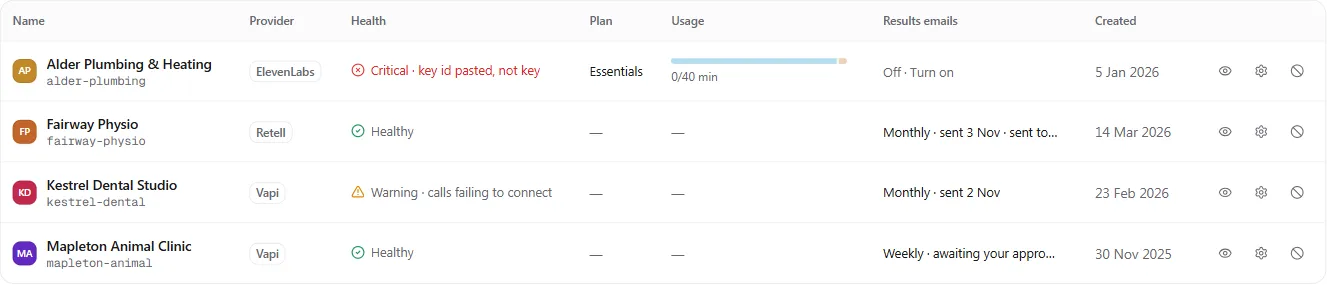
| Clients page | A Health column for every client. Click the heading to sort the worst first |
| Overview page | The Needs attention card, which lists up to five open issues. With nothing open, the card is called Client health and shows how many clients are healthy |
| A client’s overview | A strip with that client’s status and a link to its open issues |
| Client settings, then Connection | A line showing whether the key is working |
| Conversations | A banner when a key problem stops some conversations loading. Your client sees a general message instead |

How do I deal with an issue?
Section titled “How do I deal with an issue?”An issue is one problem that needs a look. Clients on the same provider account share one issue, so you fix it once.
-
Open the Health page
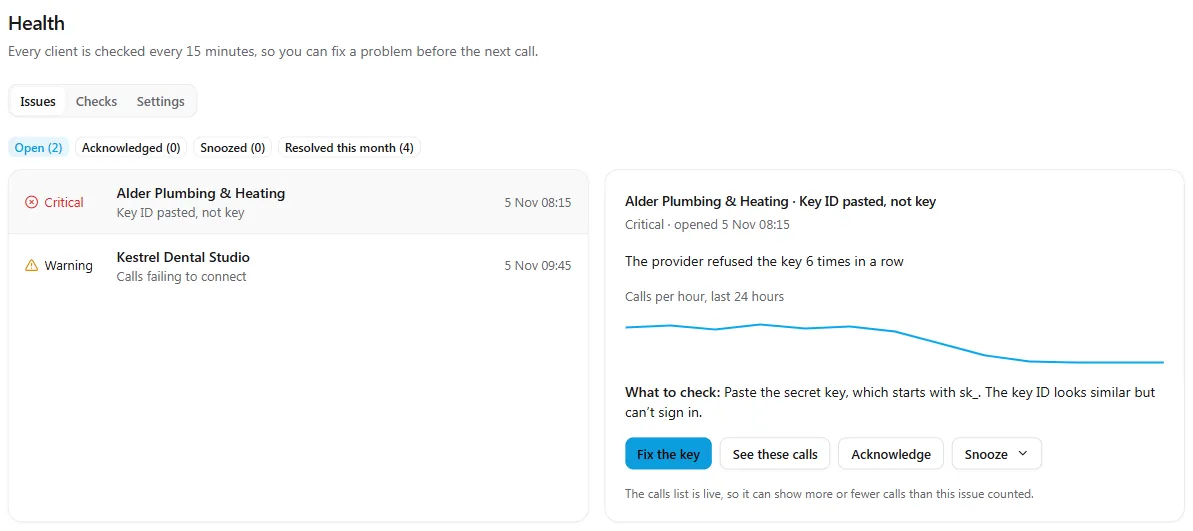
Select Health in the sidebar. The Issues tab opens on Open, with the client, the check that failed and when it opened.
-
Read what happened
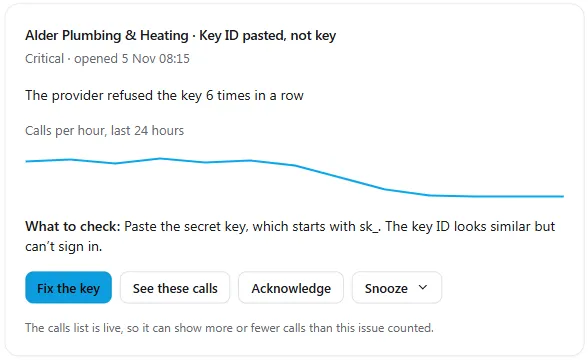
Select an issue. The panel shows what went wrong, a chart of the last 24 hours and What to check, which tells you where to start.
-
Fix it
Use Fix the key for a key problem. It opens Connection in the client’s settings. See Update a provider API key. For anything else, follow What to check. See these calls opens the client’s Conversations around the time the issue opened.
-
Tell your team, or park it
Select Acknowledge so your team can see who has it. To put it aside, select Snooze and choose 1 hour, 24 hours, 7 days or Until worse. Until worse brings it back if the severity rises, the figure doubles or more clients are affected.
-
Let it close by itself
You never close an issue by hand. It resolves after two clean checks in a row, based on real calls or a working sync, and moves to Resolved this month.
What does each status mean?
Section titled “What does each status mean?”Each client has one status, shown as an icon and words on the Clients page and the Checks tab.
| Status | What it means | What to do |
|---|---|---|
| Healthy | No problems, and there were enough real calls to prove it | Nothing |
| Warning | A check has failed. It shows which one, for example Warning · calls failing to connect | Open the issue and follow What to check |
| Critical | Something serious has failed, for example Critical · key invalid | Fix this first |
| No data | Nothing is wrong, and there are too few calls to judge. Hover to see, for example, Key OK · Sync OK · too few calls to judge rates | Nothing. It changes to Healthy once there are enough calls |
| Paused by billing | Client billing is refusing this client’s calls on purpose, so those calls don’t count as failures | Sort out the client’s billing. See Bill a client |
| Muted | You muted this client | Select End mute to stop early |
| No agents selected | The key is saved, and no agent is chosen | Choose agents in Agents & numbers |
| Key required | No API key is saved | Add the key under Connection |
| Checks delayed | Our own checks are running late, so nothing is being judged for now | Nothing. It clears by itself |
| Provider issue | One voice provider is having problems across several accounts. A banner says so, and client alerts for that provider pause | Check the provider’s status page |
There are two severities: Warning and Critical. A Critical issue opens the first time a check fails. A Warning issue opens when the check fails twice in a row, so one odd result doesn’t open anything.
What does each check look for?
Section titled “What does each check look for?”The Checks tab shows every client against every check. A cell reads OK, Warning, Critical or a dash. Hover over a cell to see the reason. A dash means the check has no result yet, for example Too few calls to judge or Not available for this provider.

The thresholds are the same for every client, and you can’t change them or switch a check off.
| Check | When it fails | What to check |
|---|---|---|
| Key invalid | The provider refuses the key on 2 or more syncs in a row | Paste the key again in Connection. Other titles here are Key ID pasted, not key, Key lacks permissions and Saved key can’t be read |
| Sync failing | 5 or more syncs fail in a row, or there is no successful sync for an hour | The provider’s status page. Calls and reports may be out of date until it recovers |
| Provider out of credit | 1 or more calls end on a credit or budget limit in the last hour | The balance and payment method in the provider’s dashboard |
| Call limit reached | 3 or more calls hit the provider’s call limit in the last hour | The account’s concurrency limit |
| Configuration errors | 3 or more calls end in a configuration error in the last hour (2 hours on ElevenLabs) | The agent’s model, voice and tools |
| Calls failing to connect | 25% of attempts fail in the last 2 hours is a Warning, and 50% is Critical. Needs at least 10 attempts | The number and its permissions with your telephony provider |
| Transfers failing | 20% of transfers fail in the last 24 hours is a Warning, and 50% is Critical. Needs at least 5 transfers. Shown in the app only | The transfer number and the agent’s transfer settings |
| Provider errors | 10% or more of calls end in a provider error in the last hour. Needs at least 10 calls | Those calls in the provider’s dashboard, and its status page |
| No calls | No calls in the last 4 hours, in a window that had 5 or more calls in each of the last 2 weeks. Only judged between 08:00 and 20:00 client time | That the number still points at the agent, and forwarding is on |
| Call volume down | Calls in the last 3 hours are under 40% of the usual level for that time. Needs 3 weeks of history | The number, forwarding, and whether the client changed its hours |
| Fewer calls marked successful | The provider’s success rating drops 20 points or more below usual over 24 hours. Needs 3 weeks of history | A few recent calls, and whether the agent or its prompts changed |
| Numbers flagged | 3 or more calls are marked as spam or blocked in 24 hours | The number’s reputation. Consider a new number for outbound calls |
| Webhook quiet | 3 or more outbound calls finish in 2 hours with no webhook | The webhook in the provider’s dashboard. Call results still arrive, a few minutes later |
When one cause explains several failures, you get one issue. A refused key, for example, covers No calls on the same client, and those cells read Covered by another issue.
Which provider supports which check?
Section titled “Which provider supports which check?”Client health only shows what each provider’s data supports. Where a check doesn’t apply, the cell shows a dash and the hover text Not available for this provider.
| Check | Retell AI | Vapi | ElevenLabs |
|---|---|---|---|
| Provider out of credit, Call limit reached | Yes | Yes | Not available |
| Numbers flagged | Yes | Not available | Not available |
| Webhook quiet | Not available | Yes | Yes |
| Fewer calls marked successful | Yes | Only when the assistant’s success result is a plain yes or no | Yes |
| Every other check | Yes | Yes | Yes |
On ElevenLabs, some call detail arrives with an hourly update, so Configuration errors and Calls failing to connect can show later than on the other providers.
How do I mute a client?
Section titled “How do I mute a client?”Mute a client during planned work or a holiday, so a quiet line or a test doesn’t open an issue. A muted client is still checked and shown, and it opens no issues and sends nothing.
-
Open Health, then the Checks tab.
-
Select Mute on the client’s row.
-
Choose Mute for: 1 hour, 24 hours, 7 days or 30 days. Add a Reason (optional), then select Mute.
To stop early, select End mute on the same row. A mute doesn’t close anything that is already open.
How do I set up alerts?
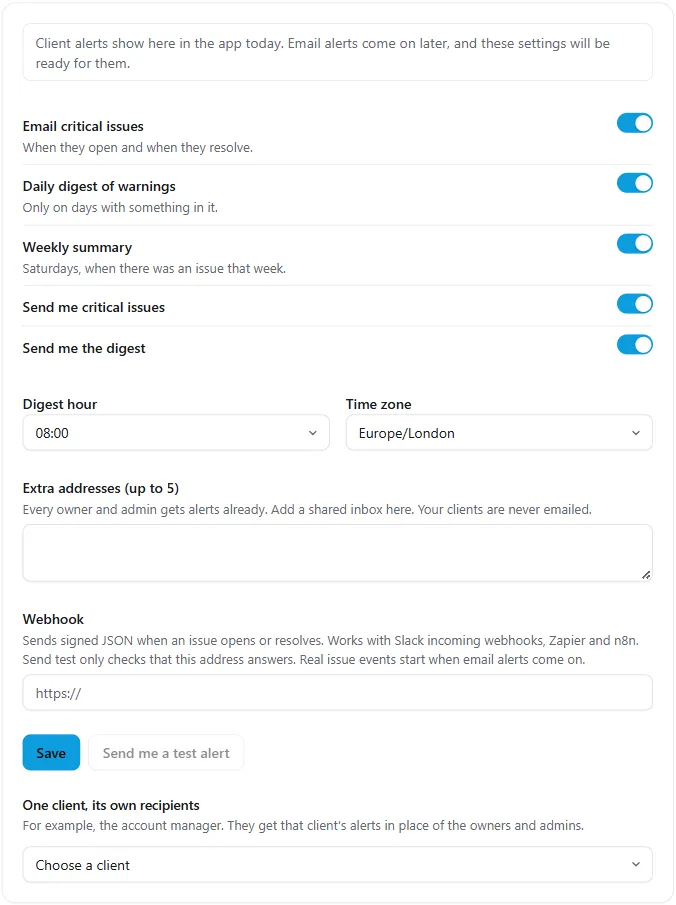
Section titled “How do I set up alerts?”Client alerts show on the Health page, the Clients page and the Overview today. Email alerts come on later, and the Settings tab lets you get ready for them now, so they follow your choices from day one.
| Setting | What it does |
|---|---|
| Email critical issues | Emails when a critical issue opens and when it resolves |
| Daily digest of warnings | One email on days with something in it |
| Weekly summary | Saturdays, when there was an issue that week |
| Send me critical issues, Send me the digest | Your own choice, for you only |
| Digest hour, Time zone | When the digest goes |
| Extra addresses (up to 5) | Every owner and admin gets alerts already. Add a shared inbox here |
| Webhook | Sends signed JSON when an issue opens or resolves. Works with Slack incoming webhooks, Zapier and n8n |
| One client, its own recipients | Choose up to 5 team members, for example the account manager, to get one client’s alerts in place of the owners and admins |
Your clients are never emailed. Alerts only ever go to your team and the extra addresses you add.
Who can see client health?
Section titled “Who can see client health?”Client health is for your agency only. Your clients never see it, and neither does View as client.
| Who | Sees | Can do |
|---|---|---|
| Agency owner or admin | Everything | Acknowledge, snooze, mute, change settings |
| Member | Issues, Checks, the Overview card and the Clients column | Acknowledge |
| Client user | Nothing | Nothing |
See Team members, roles and seats.
Where do the figures come from?
Section titled “Where do the figures come from?”Client health works from stored call statistics, not from call content. The portal keeps IDs, times, durations, categories and cost for each call, for client billing, usage, results reports, client health checks and margin, and never the recording, the transcript or the caller’s number. The checks count those statistics, so a health check makes no call to your provider. Separate background syncs bring the statistics in every few minutes. Read more in the privacy policy.
Website voice calls are left out of most checks unless you turn on This client takes real calls on its website. Chats are not counted. Only the client’s selected agents count.
Troubleshooting
Section titled “Troubleshooting”| What you see | Why | What to do |
|---|---|---|
| A client shows No data but seems fine | There are too few calls to judge | Nothing. Key and sync checks are still running |
| A client moves between Healthy and No data | Healthy needs enough recent calls, so a quiet spell can read No data | Nothing |
| The key is fixed but the issue is still open | It needs a successful sync, then two clean checks | Wait for the next checks |
| Set a time zone to use this check | The client has no time zone | Set one under Region in Client settings |
| An issue shows a number of clients | Those clients share one provider account | Fix it once, on that account |
| See these calls shows a different number | The calls list is live, and the issue counted stored statistics | Nothing. This is expected |
| Closed: no recent calls to judge it by | No calls for 7 days, so the issue closed without proof of a fix | If failures return, a new issue opens, marked Recurring |
| Flapping on an issue | It opened 3 or more times in 24 hours | It needs 6 clean hours to resolve |
| Browser test calls failed and nothing opened | Website calls are left out by default | Turn on This client takes real calls on its website if the client does |
| No Settings tab, Snooze or Mute | You’re signed in as a member | Ask an owner or admin |
| Send me a test alert is greyed out | Email alerts aren’t on yet | Nothing for now |
| Lost the webhook signing secret | It is shown once | Clear the Webhook URL, select Save, add it again and save, then update your receiver |
Does my client know when something is wrong?
Section titled “Does my client know when something is wrong?”No. Client health is only for your team. Your client doesn’t see the page, the status or any alert, so you can fix the problem first.
How quickly does a problem show?
Section titled “How quickly does a problem show?”Checks run every 15 minutes. Some problems need a second failed check, or an hour of evidence, before an issue opens, so the time varies by check.
Can I change the thresholds?
Section titled “Can I change the thresholds?”No. The thresholds are the same for every client, so a status means the same thing across your agency. To stop a client opening issues for a while, mute it.
Will I get an email when something breaks?
Section titled “Will I get an email when something breaks?”Client alerts show in the app today, and email alerts come on later. Set your choices on the Settings tab now and they will be ready.
Does it cost extra?
Section titled “Does it cost extra?”No. Client health is on every plan. See pricing.