Let clients change their plan
Your clients can upgrade, switch to a smaller plan or cancel from their own Billing page, and pay for an upgrade there, so a bigger plan reaches you as a paid change instead of an email to chase. You choose which plans they see, whether each change waits for your approval, and when upgrades start. Clients who run low can also buy a minute or chat pack on the spot.
Client self-service is off until the agency owner turns it on.
What can your clients do?
Section titled “What can your clients do?”| Your setting | What the client sees on its Billing page |
|---|---|
| Upgrades only | Change plan with the bigger plans you offer, each with Upgrade now (or Switch on the renewal date, when upgrades start at the next renewal). |
| Upgrades and downgrades | Bigger and smaller plans. Smaller plans always start at the next renewal, so nothing is refunded. |
| Clients can cancel their plan themselves | Cancel plan on the Billing page, when clients can make upgrades and downgrades. The plan ends at the end of the period, and packs stay usable until they expire. Card clients can also cancel from Stripe’s customer portal. |
| You approve every change, or downgrades and cancellations | Ask to upgrade, Ask to switch or Ask to cancel. Nothing is charged and nothing changes until you approve. |
A plan counts as an upgrade when it has more minutes, a higher price, or more chats billed the same way. Every other change is a downgrade. The same rule decides it on your side and the client’s, so both always agree.
Before you begin
Section titled “Before you begin”- Client billing switched on for your agency by the owner. See Set up client billing.
- Owner. The agency owner changes these settings. Owners and admins approve or decline changes.
- Billing shown to the client, and a billing contact. Clients change plans and buy packs from their Billing page, which only their billing contacts see while Show billing to the client is on. See Bill a client.
- Card payments (optional). To let card clients pay for an upgrade straight away, connect Stripe first. See Connect Stripe.
Turn on client self-service
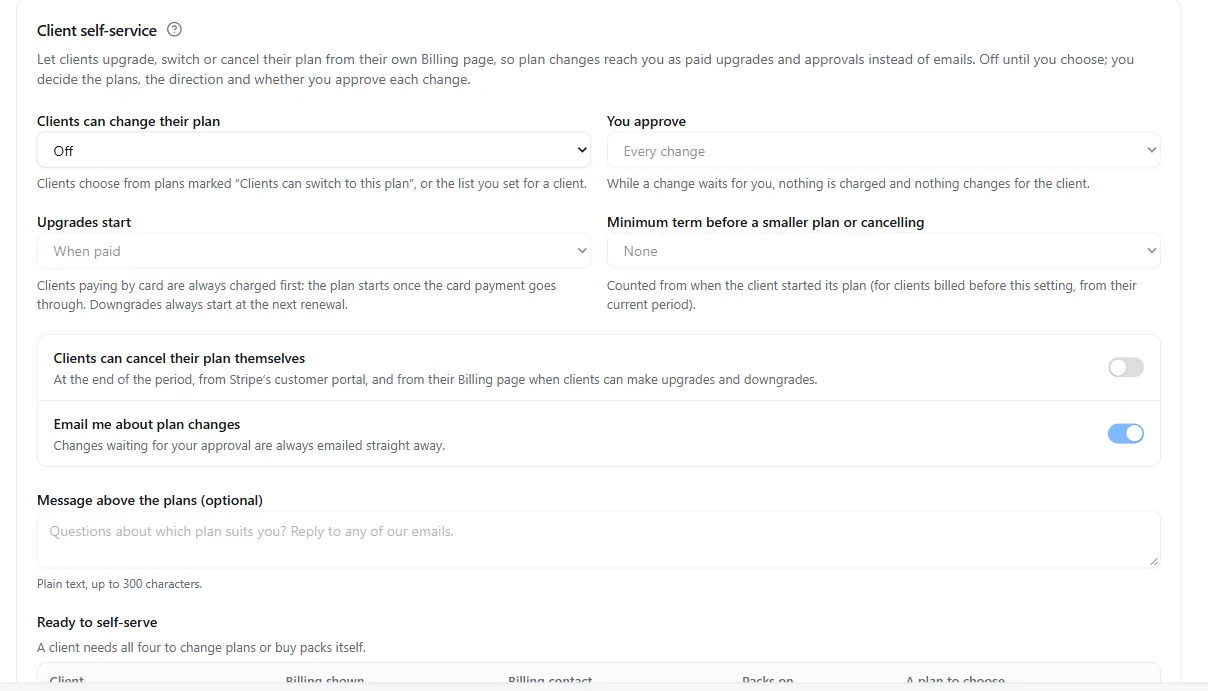
Section titled “Turn on client self-service”- Go to Client billing, then Settings, then Client self-service.
- Under Clients can change their plan, choose Upgrades only or Upgrades and downgrades (it starts on Off).
- Under You approve, choose Every change (the default), Downgrades and cancellations, or Nothing (changes go through straight away).
- Under Upgrades start, choose When paid (the default), Straight away, payment follows, or At the next renewal. Starting straight away needs you to approve every change, so a client never takes a bigger allowance without you agreeing. Clients paying by card are always charged first.
- Optionally set a Minimum term before a smaller plan or cancelling (None, or 1, 2, 3, 6, 9 or 12 months, counted from when the client started its plan), turn on Clients can cancel their plan themselves, and add a Message above the plans of up to 300 characters, for example how to reach you with questions.
- Leave Email me about plan changes on to hear about every change. Changes waiting for your approval are always emailed straight away.
- Select Save settings.
Then mark the plans clients can choose: open Client billing, then Plans, edit a plan and turn on Clients can switch to this plan. The Plans list shows Client can choose next to it. Free trial plans are never offered to clients.
What the client sees before confirming
Section titled “What the client sees before confirming”When the client picks a plan, the portal shows exactly what happens before anything is charged, for example:
- “You pay £249.00 today. Your plan starts today and renews on 3 Dec.”
- “Your 80 unused minutes come with you.”
- “We’ll send you a payment request for £249.00. Your new plan starts when it’s paid.”
- “Your plan changes to Starter on 14 Nov. Until then nothing changes.”
- “Your request goes to” your agency name. “Nothing changes until they confirm.”
If a change can’t be made yet, the picker says why instead: “Pay the overdue invoice first.”, “Contact” your agency “to change your plan.” while calls are paused, “You can change to a smaller plan from” a date inside the minimum term, or “Your plan renews in the next few minutes. Try again shortly.”
How do clients pay for an upgrade?
Section titled “How do clients pay for an upgrade?”- Your client
Chooses a bigger plan
Sees the price and what happens first
- Voice AI Portal
Waits for you
Only when you approve changes
- Stripe
Payment goes through
Card charged, or the payment request paid
- Voice AI Portal
New plan starts
Unused minutes come with the client
- Manual payments: the client gets a payment request for the new plan. When you record the payment (or it is paid by card on its payment page), the new plan starts and that payment covers its first month. Grant now on the request starts the plan before payment.
- Stripe invoices: Stripe emails the client an invoice for the new plan. When it is paid, the new plan starts and the subscription moves to the new price without a second charge.
- Card: Stripe charges the client’s card first, and the new plan starts as soon as the payment goes through. If the bank asks the client to confirm the payment, the client gets Stripe’s payment page; nothing changes until it is paid.
While an upgrade waits for payment, the client’s banner reads, for example, Upgrade to Pro: waiting for payment with Complete payment, and the client can select Cancel request. Unpaid upgrade requests and changes waiting for your approval expire after 14 days. An unpaid upgrade request never pauses a client’s calls: it is an offer, not a bill.
A scheduled downgrade or cancellation shows on the client’s plan card with Keep current plan, so the client can change their mind before the renewal.
Approve plan changes
Section titled “Approve plan changes”When a change waits for you, you get an email straight away, the client’s Billing page shows the change with Approve and Decline, and the Overview shows how many are waiting.
- Open the client’s Billing page from the email or from Client billing, then Overview.
- Check the change, then select Approve or Decline. You can add a note of up to 200 characters when you decline; the client sees it in their email.
Approving continues the change as if the client had just made it: a payment request or card charge for an upgrade, the switch at the next renewal for a smaller plan, or the end of the plan at the period end for a cancellation.
Which emails go out?
Section titled “Which emails go out?”| Who gets it | When | |
|---|---|---|
| Plan change request | Your team | A change waits for your approval (always), and, with Email me about plan changes on, when it waits for payment, is done, or was paid but couldn’t be applied |
| Plan change update | The client’s billing contacts | You approve or decline, the change expires or ends, the bank needs the client to confirm, or a paid change couldn’t be applied |
| Plan changed | The client and your team | The change is made, with the date it takes effect, and again when a smaller plan starts |
If a client pays for a change that can no longer be applied, for example because you archived the plan meanwhile, the payment is kept and you are emailed to refund or credit it.
Let clients buy packs
Section titled “Let clients buy packs”Clients who can see their Billing page can request or buy packs there whenever Client can request packs is on. When a client runs low, its banner shows Buy more, and Upgrade plan too when self-service offers it a bigger plan. Its usage emails show Add minutes, Add chat messages or Add chat conversations, linking straight to the packs. See Create minute and chat packs.
On Client billing, then Packs, each pack shows how many of your billed clients can buy it, and why the others can’t (for example billing hidden from the client, no billing contact, or another currency).
Check which clients are ready
Section titled “Check which clients are ready”Client billing, then Settings, then Client self-service shows Ready to self-serve: each billed client with the four things it needs, Billing shown, Billing contact, Packs on and A plan to choose, marked Yes or Not yet. Select a client to finish its setup.
Troubleshooting
Section titled “Troubleshooting”| Problem | What to do |
|---|---|
| The client doesn’t see Change plan | Check self-service is on for the client, at least one other plan in its currency is marked Clients can switch to this plan (or is on its own list), and the client is on Ready to self-serve with every column Yes. |
| The client sees no Cancel plan | It shows only with Clients can cancel their plan themselves on and Upgrades and downgrades chosen. Inside the minimum term it says from when the client can cancel. |
| The client is told to pay the overdue invoice first | Upgrades wait until overdue payments are settled. Record the payment, or ask the client to pay it. |
| A paid change shows as failed | The plan was archived or changed meanwhile. The payment is kept: refund or credit it, or change the plan by hand with Change plan. |