Set up credits
Everything about credits is set once, on one page, and applies to every client you bill in credits. You can change any of it later: new prices apply to calls and chats that start after the change, and past charges keep the price they had.
Who can do this: the agency owner. Admins can open the page and read every setting.
Where: Client billing, then the Credits tab.
Step 1: Set your prices
Section titled “Step 1: Set your prices”On the What you charge card, enter what a minute and a chat cost in credits.
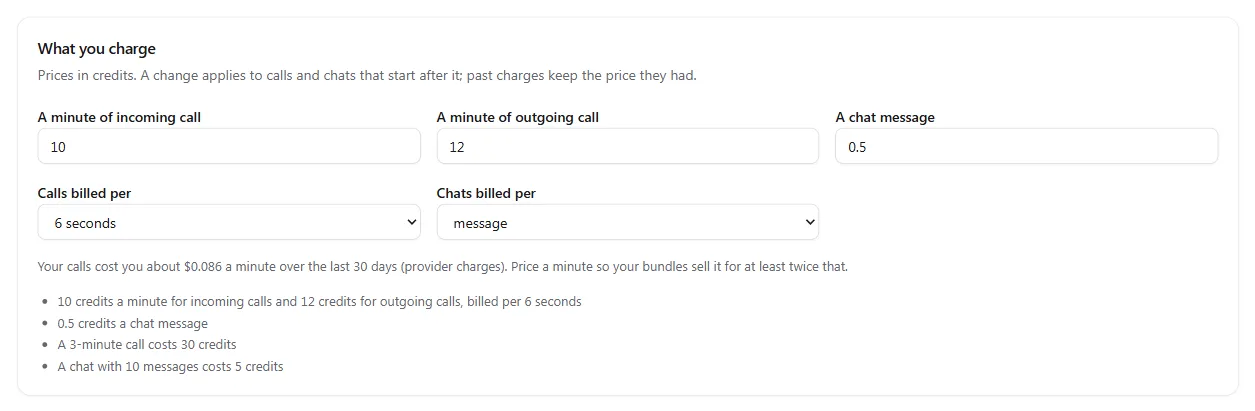
| Field | What it does | Default |
|---|---|---|
| A minute of incoming call | Credits for each minute of an inbound call. Required. | None |
| A minute of outgoing call | Credits for each minute of an outbound call | Same as incoming |
| A chat message (or A chat conversation) | Credits for each chat, whatever the channel | None |
| Calls billed per | How call time is rounded up: second, 6 seconds, 30 seconds or minute | 6 seconds |
| Chats billed per | Message or conversation | Message |
The worked examples under the fields update as you type, so you can see what a 3-minute call or a 10-message chat will cost your client.
If you can see margin, the card also shows what your calls cost you per minute over the last 30 days, from your provider charges. Use it to price a minute well above your cost.
Step 2: Choose what happens when credits run out
Section titled “Step 2: Choose what happens when credits run out”On the When credits run out card, choose separately for calls and for chats.

| Choice | What happens |
|---|---|
| Stop new calls (or Stop new chats) | New calls or chats stop at zero and start again within a minute of credits arriving. The default. |
| Allow a little more (grace) | Calls or chats carry on until the client is the Grace amount below zero, then stop |
| Keep going, client owes the rest | Nothing stops. What is used below zero becomes an amount owed, billed to the client. See When a client owes you. |
Calls and chats in progress always finish. On Track only, nothing stops, whatever you choose here, and the balance can go below zero.
Step 3: Choose when credits expire
Section titled “Step 3: Choose when credits expire”
- Bought credits: Never expire (the default), Expire after a number of days, Expire at the end of the month or Expire at the end of the client’s period.
- Expiry warning (days before): how far ahead you and the client are told that credits are about to expire. 7 days unless you change it.
The expiry in force when a client buys is kept with those credits, so a later change never shortens what a client already bought.
Step 4: Check the more options
Section titled “Step 4: Check the more options”Select Show on the More options card. Every option already has a sensible default, so change only what you need.
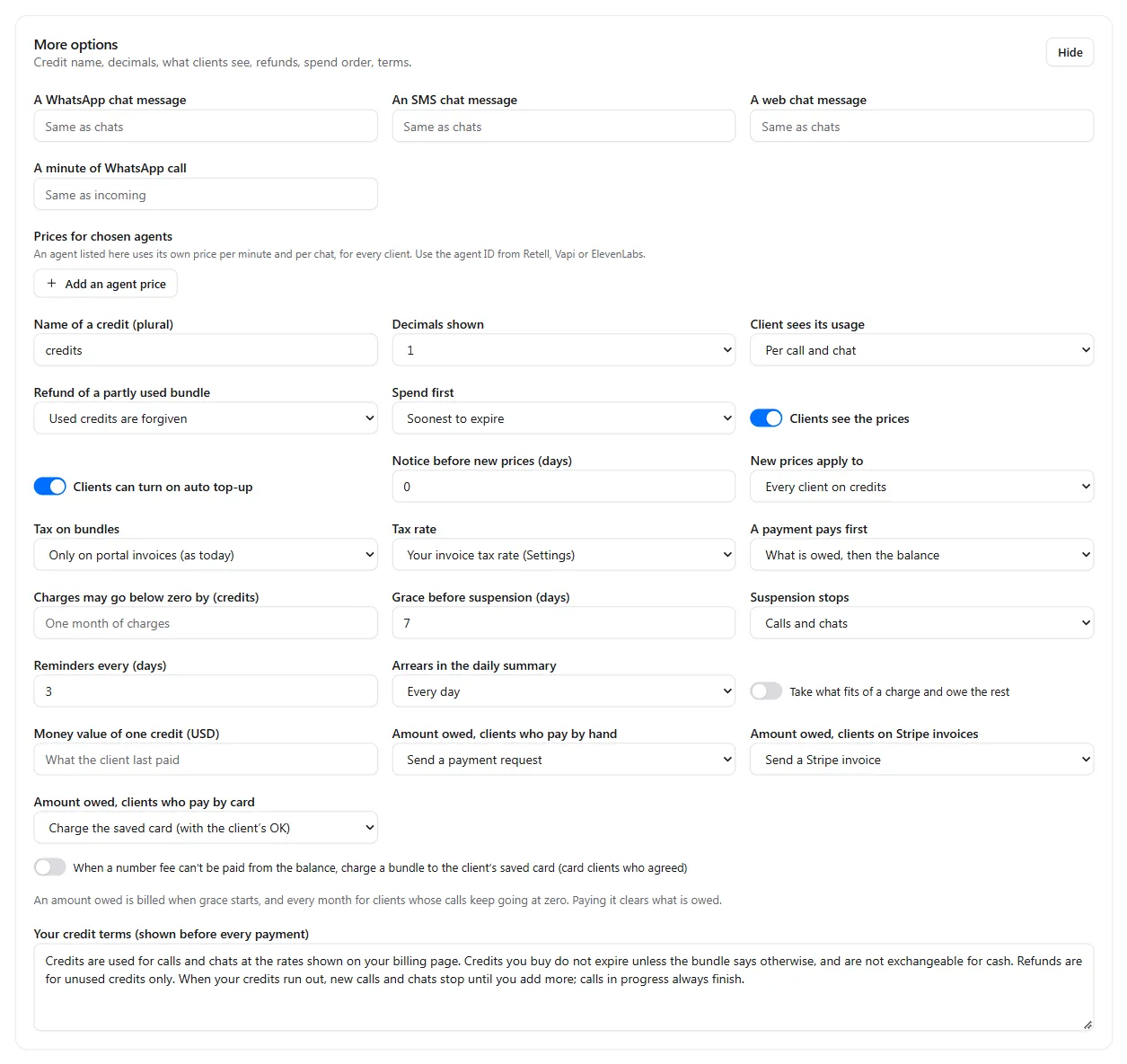
Prices per channel and per agent
- A WhatsApp chat message, An SMS chat message, A web chat message: their own price, or the same as chats if left empty.
- A minute of WhatsApp call: its own price, or the same as incoming calls.
- Prices for chosen agents: select Add an agent price, paste the agent ID from Retell AI, Vapi or ElevenLabs, and set its price per minute and per chat. That agent uses this price for every client.
What your clients see
| Option | Choices | Default |
|---|---|---|
| Name of a credit (plural) | Any word, for example “tokens” or “units” | credits |
| Decimals shown | 0, 1 or 2 | 1 |
| Client sees its usage | Per call and chat, Daily totals, Not shown | Per call and chat |
| Clients see the prices | On or off | On |
| Clients can turn on auto top-up | On or off. Only the client can switch it on, for itself, with a saved card | On |
Refunds, spending and price changes
| Option | Choices | Default |
|---|---|---|
| Refund of a partly used bundle | Used credits are forgiven, or used credits are owed | Used credits are forgiven |
| Spend first | Soonest to expire; Plan, then bonus, then bought; Plan, then bought, then bonus | Soonest to expire |
| Notice before new prices (days) | Days between saving a price change and it starting | 0 |
| New prices apply to | Every client on credits, or clients moved to credits from now on | Every client on credits |
Tax
- Tax on bundles: only on portal invoices (the default), or every way of paying, card included.
- Tax rate: your invoice tax rate from Settings (the default), a rate for credits (with Prices include it on or off), or no tax.
Amounts owed and arrears. These decide what happens when a client goes below zero or a recurring charge isn’t paid: how far below zero a charge may go, grace days, what suspension stops, reminders, the money value of a credit and how an amount owed is billed for each way of paying. They are explained in full in When a client owes you.
Number fees on the card. When a phone number fee can’t be paid from the balance, a bundle you choose can be charged to the client’s saved card, for clients who pay by card and agreed to it. See Bill clients for phone numbers.
Your credit terms. The text your clients see and accept before every payment. A starter text is filled in: edit it to match your own terms.
Select Save credit setup at the bottom of the page.
Step 5: Create bundles
Section titled “Step 5: Create bundles”Bundles are what your clients buy. On the Bundles card, fill in the row at the bottom and select Add.
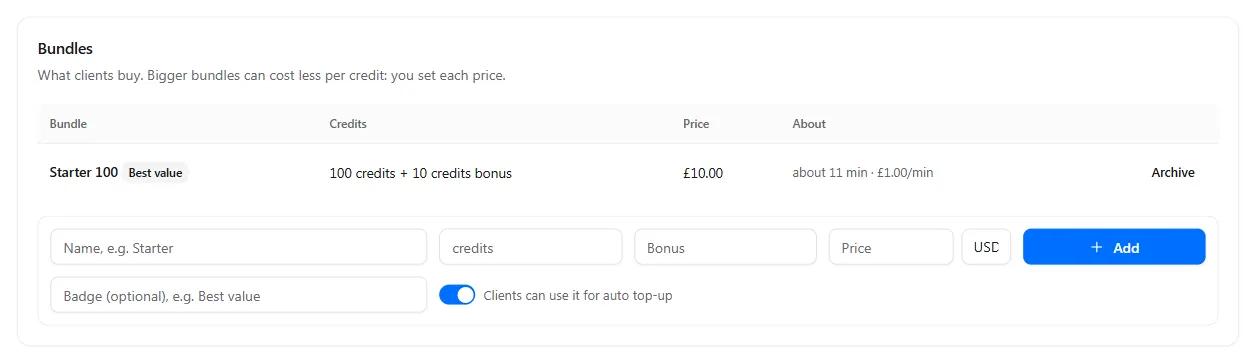
| Field | What it does |
|---|---|
| Name | What the client sees, for example Starter |
| Credits | Credits the bundle adds |
| Bonus | Extra credits on top, for example 10% more on bigger bundles |
| Price and currency | What the client pays |
| Badge | Optional label such as Best value |
| Clients can use it for auto top-up | Whether a client may choose this bundle for automatic top-ups by card. On unless you turn it off. |
The About column shows roughly how many minutes the bundle buys at your prices, and the price per minute. If that is below what calls cost you, it says so, so you never sell at a loss by accident.
To stop selling a bundle, select Archive. Clients who already bought it keep their credits. Card payments must be at least Stripe’s minimum charge for the currency.
Step 6 (optional): Create credits plans
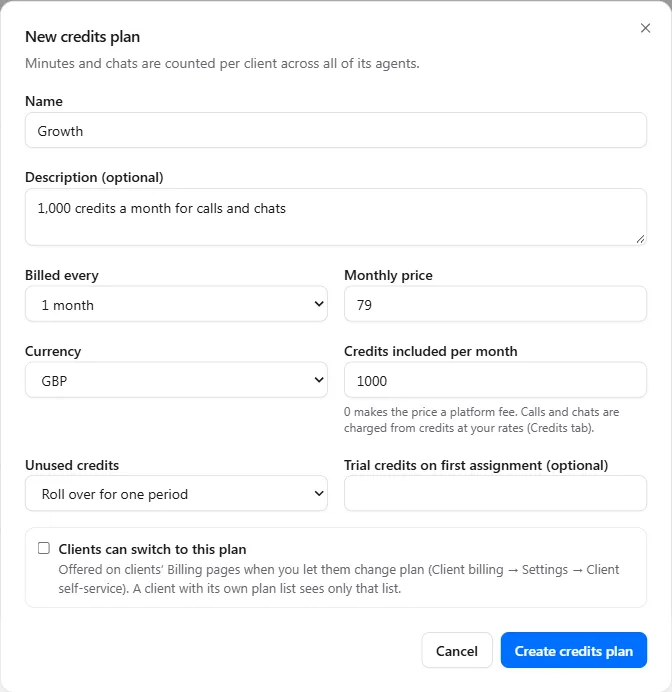
Section titled “Step 6 (optional): Create credits plans”A credits plan gives the client credits every period for a fixed price: a retainer with usage included.
- Go to the Plans tab and select New credits plan.
- Fill in the name, how often it is billed (every 1, 3, 6 or 12 months), the price and currency.
- Enter Credits included per month. With 0, the price is a platform fee and every call and chat is paid from bundles.
- Choose what happens to Unused credits: Expire at renewal, Roll over for one period or Keep rolling over.
- Optionally, give Trial credits on first assignment, and tick Clients can switch to this plan if clients may choose it themselves.
- Select Create credits plan.
Step 7: Choose your emails and charge templates
Section titled “Step 7: Choose your emails and charge templates”The last two cards on the Credits tab are:
- Credit and charge emails: which emails go to your team and to clients, such as a low balance or a charge the balance won’t cover. See Billing alerts and emails.
- Recurring charges: templates for add-ons you sell to many clients, such as a phone number fee. See Charge recurring fees and add-ons.
Move a client to credits, then add credits by hand or send a bundle request to see it work.