Billing alerts and emails
You decide who hears about what. Every billing email has its own switch for your team and for the client, any client can have its own choices, and the alerts that need action can go straight to Slack or your own systems.
Who can do this: the agency owner. Admins can read the settings.
Choose which emails go out
Section titled “Choose which emails go out”The Credit and charge emails card is on Client billing, then Credits. Every switch is on unless you turn it off.
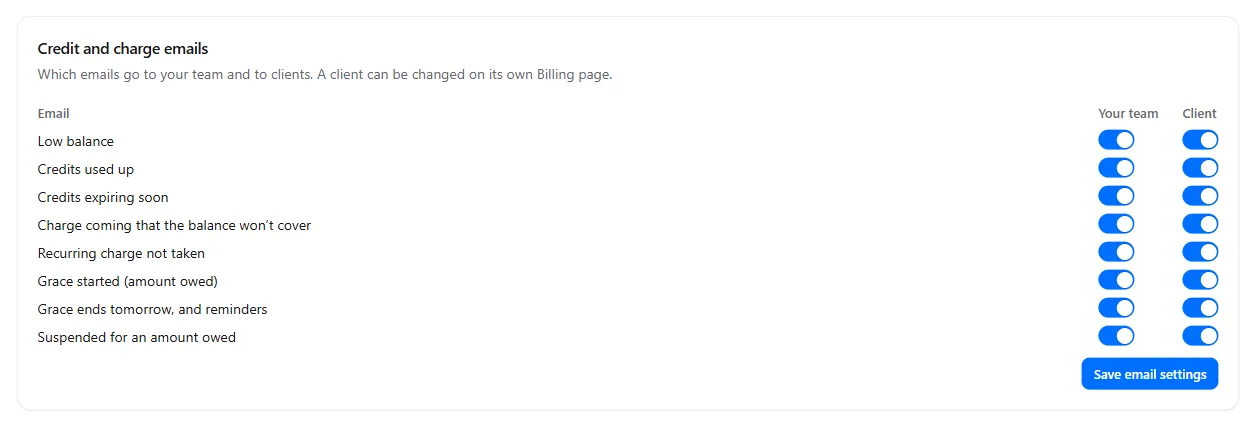
| Sent when | |
|---|---|
| Low balance | The balance falls below the low balance level |
| Credits used up | The balance reaches zero |
| Credits expiring soon | Credits expire within your warning days |
| Charge coming that the balance won’t cover | A recurring charge is due soon and the balance is short |
| Recurring charge not taken | A charge failed |
| Grace started (amount owed) | Grace starts, with the amount and the date to pay by |
| Grace ends tomorrow, and reminders | Every few days in grace, and the day before it ends |
| Suspended for an amount owed | The client is suspended |
Select Save email settings. Your other billing emails (plans, packs, payments, renewals) have the same switches on the Settings tab, on the Client billing emails card. The agency owner is also emailed when a suspended client’s numbers need a decision.
For one client. On the client’s Billing page, select Change for this client on its Credit settings card. Its email switches are below the fields. Saving there fixes every switch for that client; Use the agency setup goes back to your defaults.
Client emails go out with your branding, from your own email sender if you set one up. See Send email from your own domain.
Send alerts to a webhook or Slack
Section titled “Send alerts to a webhook or Slack”Every Needs attention alert can be sent to your own tools when it opens and again when it is resolved: failed charges, clients in grace or suspended, declined card charges, number reviews, number conflicts, missing numbers and failing provider keys. Alerts carry client names and amounts only.
The Alerts to your tools card is on Client billing, then Settings.
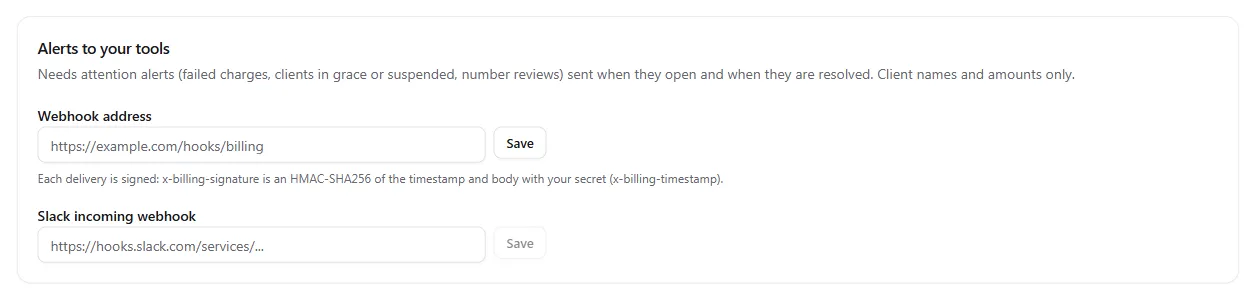
Slack. Create an incoming webhook in Slack for the channel you want, paste its address (it starts with https://hooks.slack.com/services/) under Slack incoming webhook and select Save. Each alert arrives as a short message with a link to the client.
Your own tools. Enter your HTTPS address under Webhook address and select Save. Copy the secret shown: it is shown once. Select New secret at any time to replace it. Then select Send a test alert.
Each delivery is a JSON POST:
{ "event": "billing_alert_opened", "agency": "Brightline Agency", "alert": { "id": "6f1c0b9e-...", "kind": "grace_started", "title": "ABC Plumbing owes 55 credits", "detail": null, "client": "ABC Plumbing", "opened_at": "2026-11-17T16:29:09Z", "resolved_at": null, "url": "https://portal.example.com/dashboard/workspaces/.../billing" }}event is billing_alert_opened, billing_alert_resolved or test, and url opens the client in your portal, on your own domain if you use one. To check a delivery came from Voice AI Portal, compute an HMAC-SHA256 with your secret over the x-billing-timestamp header, a full stop and the raw body, and compare it with the x-billing-signature header:
import { createHmac, timingSafeEqual } from 'node:crypto';
function isGenuine(secret, timestamp, rawBody, signature) {  const expected = 'sha256=' + createHmac('sha256', secret).update(`${timestamp}.${rawBody}`).digest('hex');  return expected.length === signature.length && timingSafeEqual(Buffer.from(expected), Buffer.from(signature));}
A delivery that fails is tried again on each of the next three hourly runs.