Download call history and recordings
When a client asks “can I have a copy of my calls?”, the answer is yes, straight from their portal. Your clients download their call history as a spreadsheet, any recording, any transcript and a printable PDF of any conversation, without you exporting anything from Retell AI, Vapi or ElevenLabs for them. The files look the same whichever provider the client’s agents run on, and they carry your branding, not the provider’s.
You stay in control: one switch per client decides whether that client’s users can download. Your own team can always download.
What your clients can download
Section titled “What your clients can download”| Download | Where | Format |
|---|---|---|
| Call history | Conversations, Download CSV | A spreadsheet (CSV) of every conversation in the period on screen |
| Recording | A conversation’s Recording card, download icon | The recording in its own format: WAV for Retell AI and Vapi, MP3 for ElevenLabs |
| Transcript | A conversation’s transcript card, download icon | A text file with the call details at the top and a time on each line |
| Printable record | A conversation’s Print or save as PDF | A record of the call to print or save as a PDF |
| Campaign results and lead lists | Export CSV on a campaign or a lead list | Spreadsheets. See Campaign results and Manage lead lists |
Nothing is stored for these files. Each one is built when it is asked for, from the client’s provider account, and goes straight to the browser.
Download the call history
Section titled “Download the call history”-
Open Conversations and choose the period
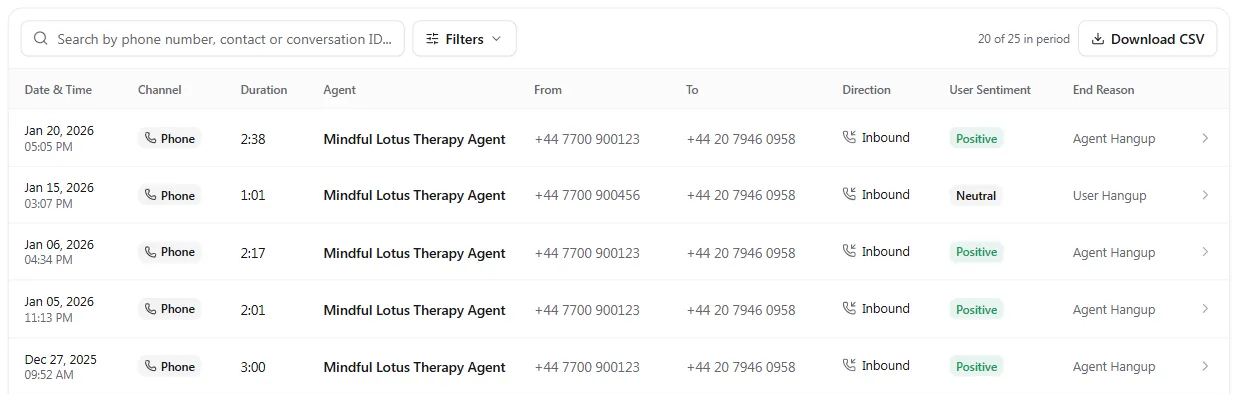
In the client, open Conversations. Choose 7 days, 14 days or 30 days, or set From and To under Filters. To download one channel only, pick it in the channel filter, for example Phone or Web chat.
-
Select Download CSV
Download CSV sits at the right of the list, next to the count of conversations in the period.
-
Select Download
The Download call history window shows the dates the file covers and the time zone its times are in. Select Download. A count shows the conversations read so far, and Cancel stops it. When it finishes, the file saves to your computer as
calls-<client>-<from>-to-<to>.csv.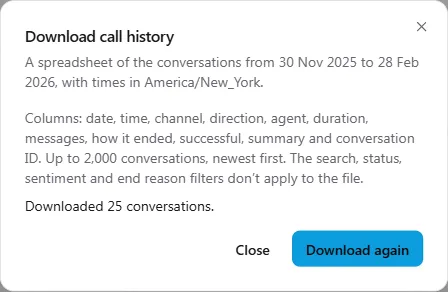
The file opens in Excel, Google Sheets or Numbers, with accents and other languages intact. It holds up to the newest 2,000 conversations of a period of up to 92 days. For more, download the period in parts: the window says so when a file stops at 2,000. The period and channel filter apply to the file; the search box and the sentiment and end reason filters don’t.
What’s in the file
Section titled “What’s in the file”One row per conversation, newest first, with the same columns for every provider:
| Column | What it holds |
|---|---|
| Date, Time | When the conversation started, in the client’s time zone |
| Channel | Phone, Web call, Web chat, WhatsApp, SMS or the integration it came from |
| Direction | Inbound or Outbound, for phone calls and SMS |
| Agent | The AI agent that handled it |
| Duration | Length of a call, in minutes and seconds |
| Messages | Number of messages in a chat |
| How it ended | Completed, Transferred, Transfer failed, Voicemail, No answer or busy, Caller hung up early, Failed to connect or Technical issue |
| Successful | Yes, No or Unknown: whether the provider’s own analysis marked the conversation successful |
| Summary | The provider’s summary of the conversation |
| Conversation ID | The ID to find the conversation again in the portal |
The call history file holds no phone numbers, costs or transcripts. Numbers and the full conversation are in the single-conversation downloads below, which a client opens one call at a time.
Download one conversation
Section titled “Download one conversation”Open any conversation from the list.
Recording
Section titled “Recording”Select the download icon on the Recording card. The file saves in the provider’s own format, WAV for Retell AI and Vapi and MP3 for ElevenLabs, named recording-<conversation ID>.

Transcript
Section titled “Transcript”Select the download icon on the transcript card (the copy icon beside it copies the transcript instead).

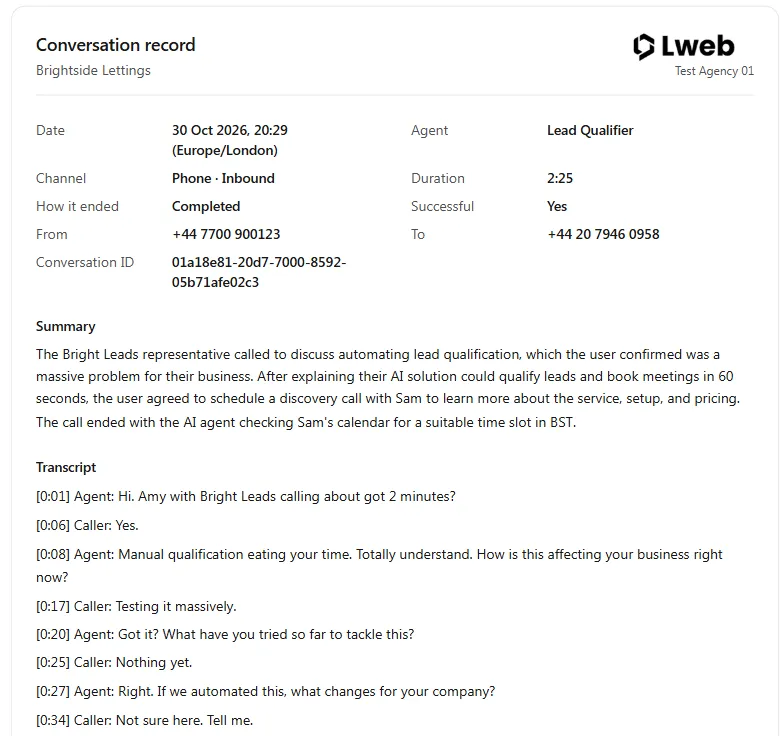
The text file starts with the conversation ID, date and time, agent, channel and direction, duration (or messages for a chat) and, for phone calls and SMS, the numbers. Each line follows as Agent or Caller (Customer in chats). On calls, each line also shows when it was said, for example [0:06] Caller: Yes., so you can find the moment in the recording.
Printable record (PDF)
Section titled “Printable record (PDF)”-
Select Print or save as PDF
The button sits at the top right of the conversation.

-
Check the record
The Conversation record opens with your agency name (and your logo when the client uses your portal address), the client’s name, the call details, the summary and the full transcript with times.
-
Print it or save it
Select Print or save as PDF, then print, or choose Save as PDF as the printer. Only the record prints, on white paper, in any language the conversation was in.
Turn client downloads on or off
Section titled “Turn client downloads on or off”Every client starts with downloads on. Agency owners and admins change it per client:
-
Open Client settings
In the client, select Client settings in the Agency only box of the sidebar, then Downloads in the section menu.
-
Switch Clients can download
The change saves straight away.
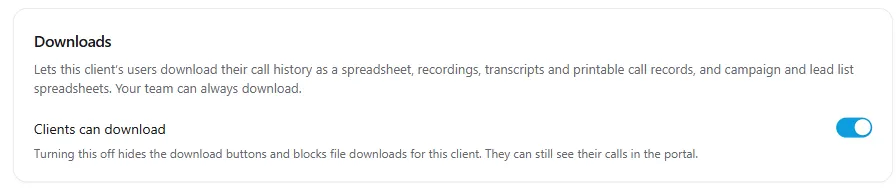
With the switch off, that client’s users:
- see no Download CSV, recording or transcript download, transcript copy or Print or save as PDF, and no Export CSV on campaigns and lead lists;
- still see every conversation, read every transcript and play every recording in their portal;
- get “Downloads are turned off for this account. Ask your agency if you need a copy.” if they open a download link directly. The portal checks this on every download, not only in the screens.
Your team is never limited: owners, admins and members can always download, for any client. To see exactly what your client sees, use View as client.
Troubleshooting
Section titled “Troubleshooting”| What you see | What to do |
|---|---|
| Choose a range of 92 days or less to download. | Shorten the period with From and To, and download a long period in parts. |
| The window says the file has the newest 2,000 conversations | The period holds more. Choose a shorter period for the rest. |
| We couldn’t read calls from the voice provider. Ask your agency to check the connection, then try again. | The client’s provider account didn’t answer, often because its API key changed. See Update a provider API key. |
| The voice provider is busy. Wait a moment, then try again. | The provider limited how fast it answers. Try again in a minute. |
| The window says the provider stopped answering part way | The file has the conversations read before that. Download again, or download the rest as a shorter period. |
| A client has no download buttons | Their downloads are off. Switch Clients can download on in the client’s Client settings. |
| No download icon on a recording | The conversation has no recording, for example a chat or a call that didn’t connect. |
Can my clients export their own call data?
Section titled “Can my clients export their own call data?”Yes. They download their call history as a spreadsheet, and any recording, transcript or printable record, from their portal. You decide per client whether they can.
Does it work the same for Retell AI, Vapi and ElevenLabs?
Section titled “Does it work the same for Retell AI, Vapi and ElevenLabs?”Yes. The spreadsheet has the same columns, the transcript file the same layout and the printable record the same details for all three. Only the recording keeps the provider’s own audio format.
Are the files stored anywhere?
Section titled “Are the files stored anywhere?”No. Each file is built when it is asked for, from the client’s provider account, and sent straight to the browser.
Do downloads show my provider or my costs?
Section titled “Do downloads show my provider or my costs?”The files never show your costs, and the call history columns never name your voice provider. The printable record carries your agency name, and your logo on your own portal address.